NTC Tech Connect - Travel Nightmare - Deploying SP Central - Part 2

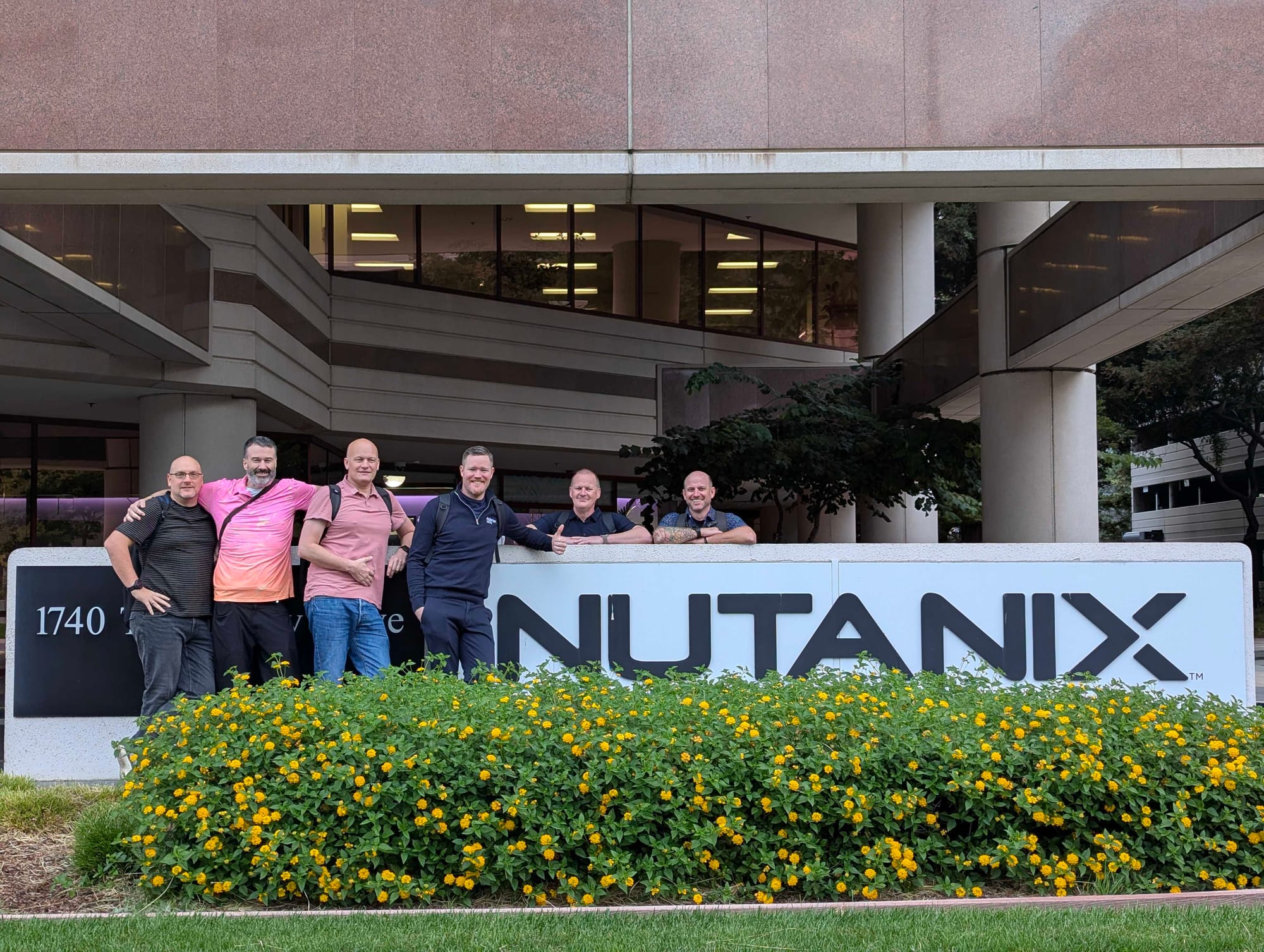
So, as I was writing the last post, I was sitting at a restaurant at Stockholm Arlanda Airport and had completed the first leg of my journey, Sundsvall - Stockholm. Everything was going smoothly, and I promised you that I would update part two of the Deploying SP Central series somewhere over the Atlantic Ocean. That did not happen, and to give you some context, I need to tell you the long story about the travel problems we encountered.
I woke up at the hotel at Stockholm Arlanda to catch the flight to Amsterdam and Schiphol to meet up with Julien, Jeroen, Damien, and Patrick to continue our journey towards San Francisco. Unfortunately, the flight from Stockholm to Amsterdam was delayed by almost 2 hours, and I missed KL605 to SFO.
Julien was in the same situation; his flight from Leon was also delayed.
We joined forces, and after about 2-3 hours of waiting in the KLM helpdesk line, we were rebooked on a Lufthansa flight from Frankfurt on Sunday. So now we needed to find a hotel at Schiphol.
So, me and Julien made a second attempt on Sunday. We started off with a short 40-minute flight from AMS to FRA. We were delayed again, and we had to RUN through half the airport just to get stuck in passport control.
When we got through passport control, the departure time had already passed, but they waited for us. And we made it, more than 24 hours delayed.
But anyways we made it and we're now attending the first day of the NTC Tech Connect and since this is not a travel blog, on to the second part of the series - actually starting to deploy first Nutanix Central (NC) and connecting Prism central to it.
Deploying
Nutanix Central
 Jonas Högman
In the last post, we went through the prerequisites to start deploying stuff. Check out that post in the link above.
So, after we have created all the DNS entries and the subnet hosting Nutanix Central, we can go ahead and deploy Nutanix Central.
First, I will create the CSR requests for both the "Nexus" and "Enter" endpoints.
I use config files for both:
cat << 'EOF' > enter.cnf
[req]
prompt = no
distinguished_name = dn
req_extensions = req_ext

[dn]
CN = enter.sp-test.gdmcloud.se

[req_ext]
subjectAltName = @alt_names

[alt_names]
DNS.1 = enter.sp-test.gdmcloud.se
DNS.2 = *.domains.enter.sp-test.gdmcloud.se
DNS.3 = *.services.enter.sp-test.gdmcloud.se
DNS.4 = iam.enter.sp-test.gdmcloud.se
DNS.5 = *.transport.enter.sp-test.gdmcloud.se
DNS.6 = *.tenants.enter.sp-test.gdmcloud.se
IP.1 = 10.xx.xx.114
IP.2 = 10.xx.xx.115
EOF
cat << 'EOF' > nexus.cnf
[req]
prompt = no
distinguished_name = dn
req_extensions = req_ext
[dn]
CN = nexus.sp-test.gdmcloud.se
[req_ext]
subjectAltName = @alt_names
[alt_names]
DNS.1 = nexus.sp-test.gdmcloud.se
DNS.2 = *.domains.nexus.sp-test.gdmcloud.se
DNS.3 = *.services.nexus.sp-test.gdmcloud.se
DNS.4 = iam.nexus.sp-test.gdmcloud.se
DNS.5 = *.transport.nexus.sp-test.gdmcloud.se
DNS.6 = ncm.data.nexus.sp-test.gdmcloud.se
IP.1 = 10.xx.xx.114
IP.2 = 10.xx.xx.115
EOF
openssl genrsa -out nexus.key 2048
openssl req -new -key nexus.key -out nexus.csr -config nexus.cnf

openssl genrsa -out enter.key 2048
openssl req -new -key enter.key -out enter.csr -config enter.cnf
Then we take the CSR and use our CA on the domain controller to get the certificates. I will not cover the steps to create the certificates in detail since thats outside the scope of this post.
You also need to download the root CA cert in base64 format form your CA server. Copy the CA certificate to a Prism Central CVM:
scp ca.crt nutanix@<PCVM-IP>:/home/nutanix/SSH to a PC CVM:
ssh nutanix@<PCVM-IP>
sudo su -
cd /home/nutanix
Download the two scripts linked by KB-19928 and inspect them before execution:
wget https://download.nutanix.com/kbattachments/19928/add-root-ca-to-iam-authn.sh

wget https://download.nutanix.com/kbattachments/19928/update_ca_pc_and_dm.sh

chmod +x add-root-ca-to-iam-authn.sh update_ca_pc_and_dm.sh
Run the scripts:
./add-root-ca-to-iam-authn.sh ca.crt
./update_ca_pc_and_dm.sh ca.crtYou need to name the CA cert file
ca.crt; all other names and the script will fail. I learned this the hard way. It is also important to run it as root/sudo.If you're using a scaled-out Prism Central, you need to run the scripts from a control-plane node; otherwise, you'll get a KUBECONFIG not found error.
So when we have the certificates in place and we have PC trust our CA, we can go ahead and deploy Nutanix Central.
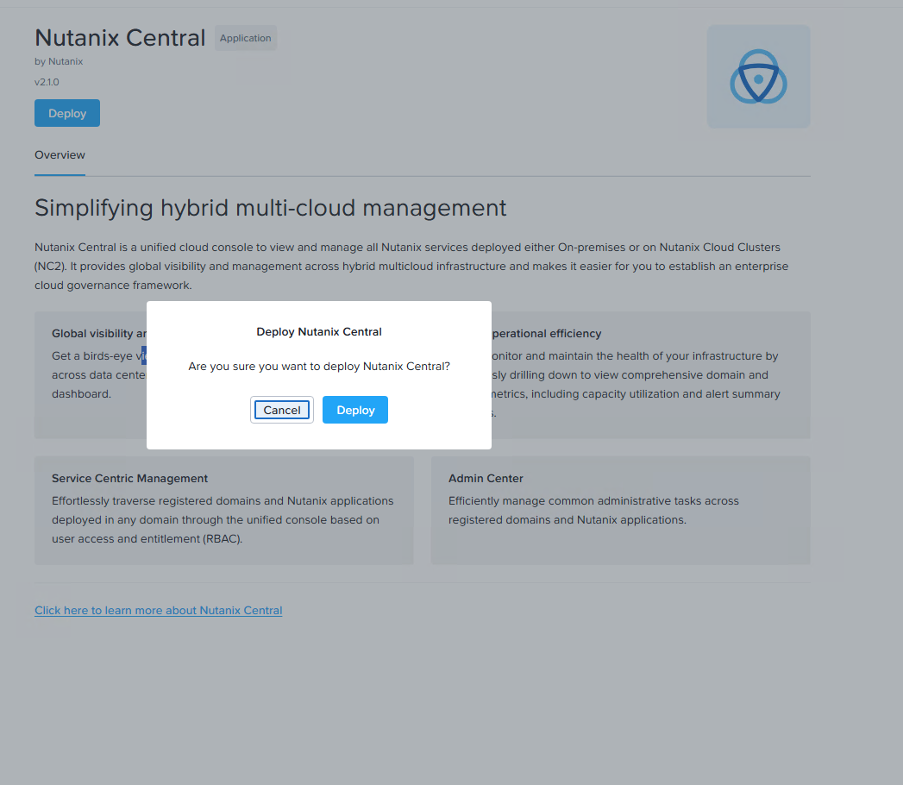
- Go to Prism Central, then Admin Center, and Marketplace. Find Nutanix Central and select Deploy.
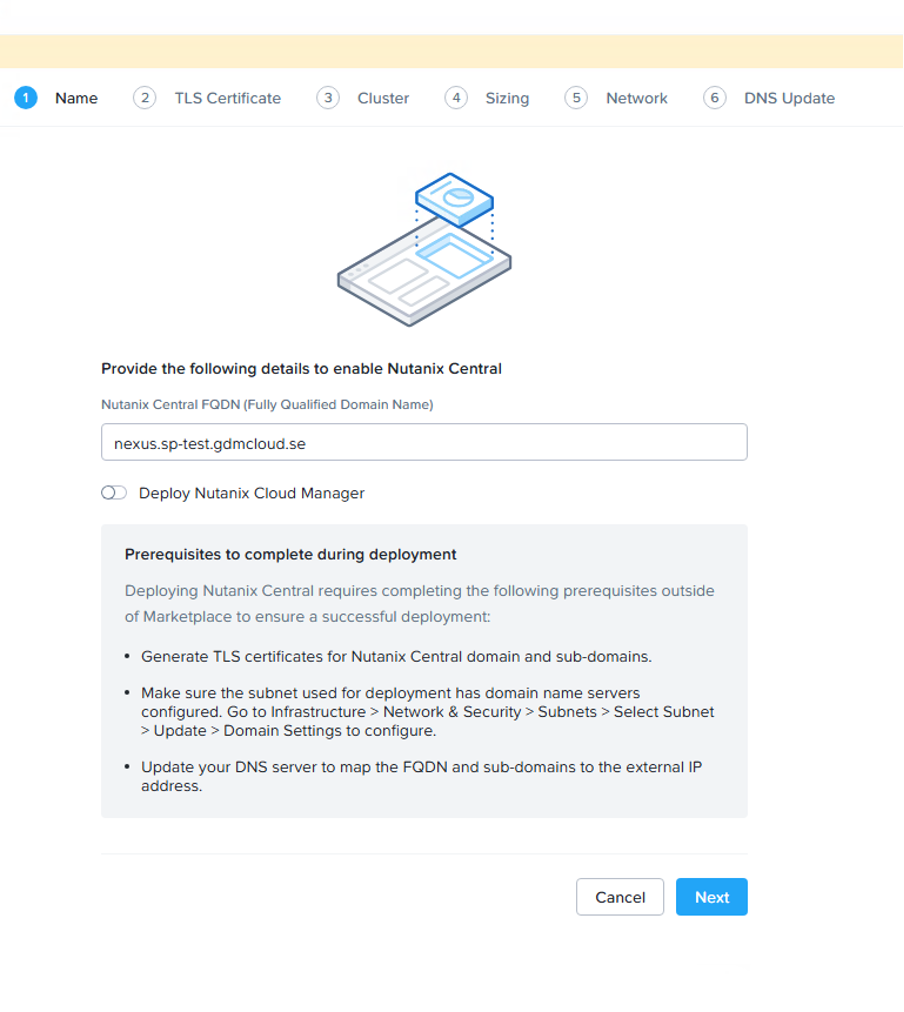
- Enter the FQDN of your Nutanix Central instance. In my case:
nexus.sp-test.gdmcloud.se
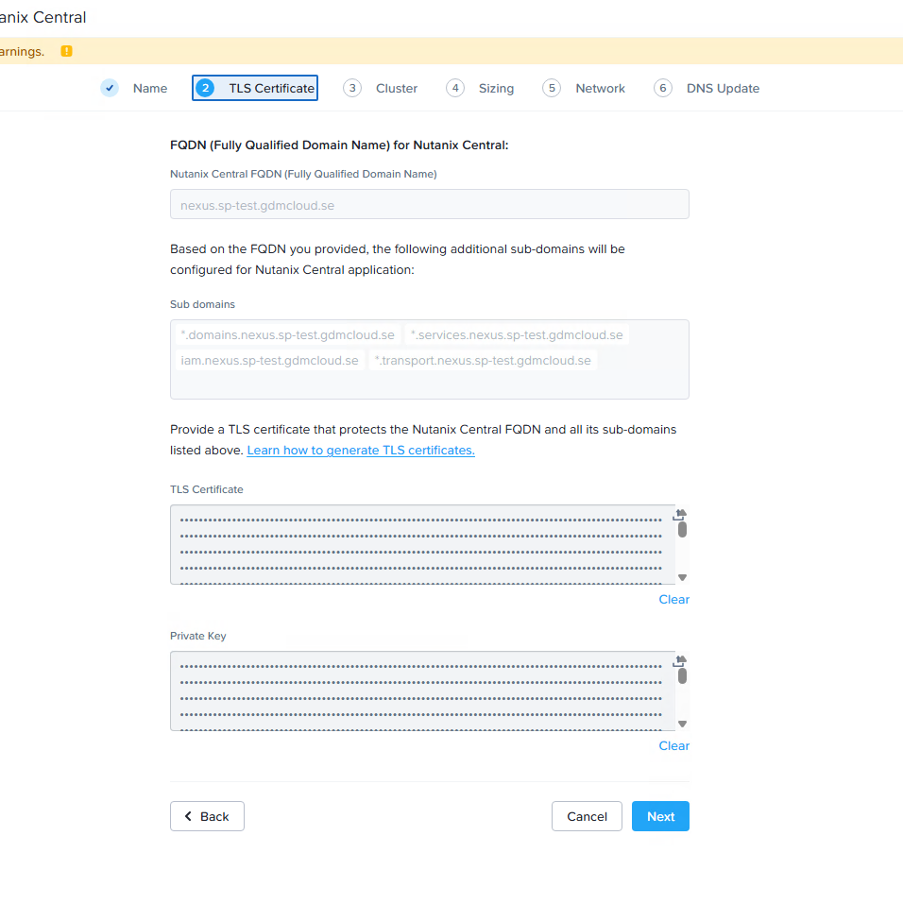
- Upload the appropriate certificate that we got assigned by the CA in the earlier step.
- Choose the Nutanix AOS cluster that will host the NC instance.
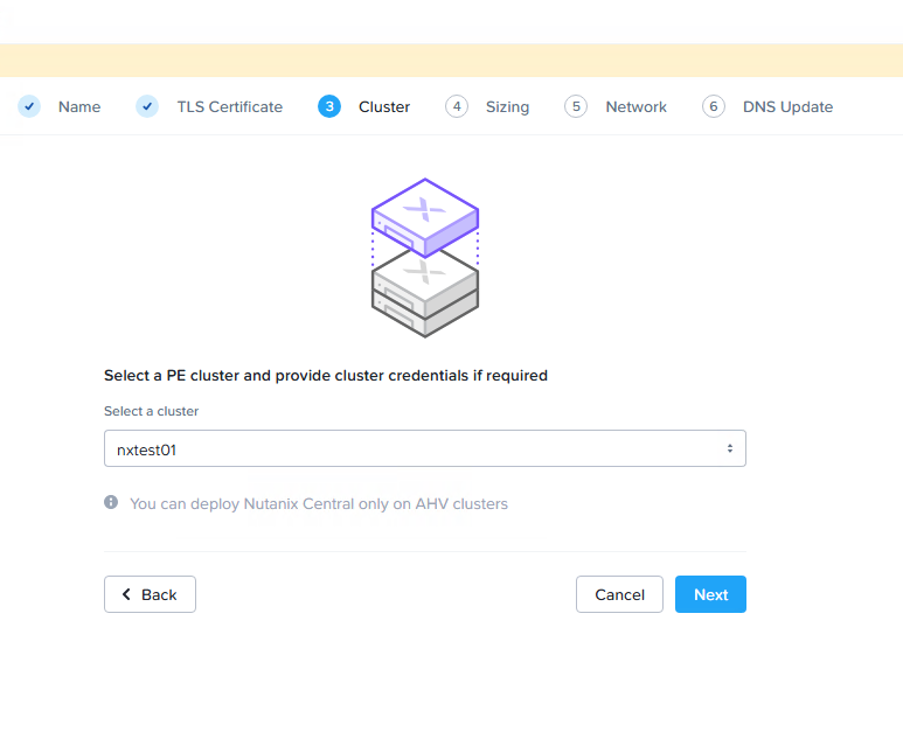
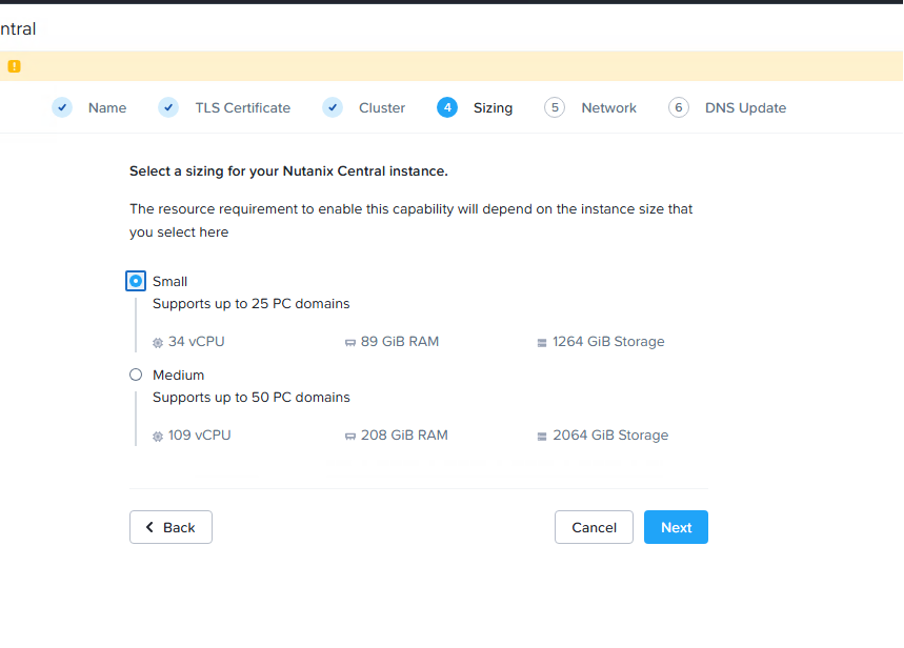
- Choose the size of your NC instance. For the sake of this POC/LAB, we chose Small.
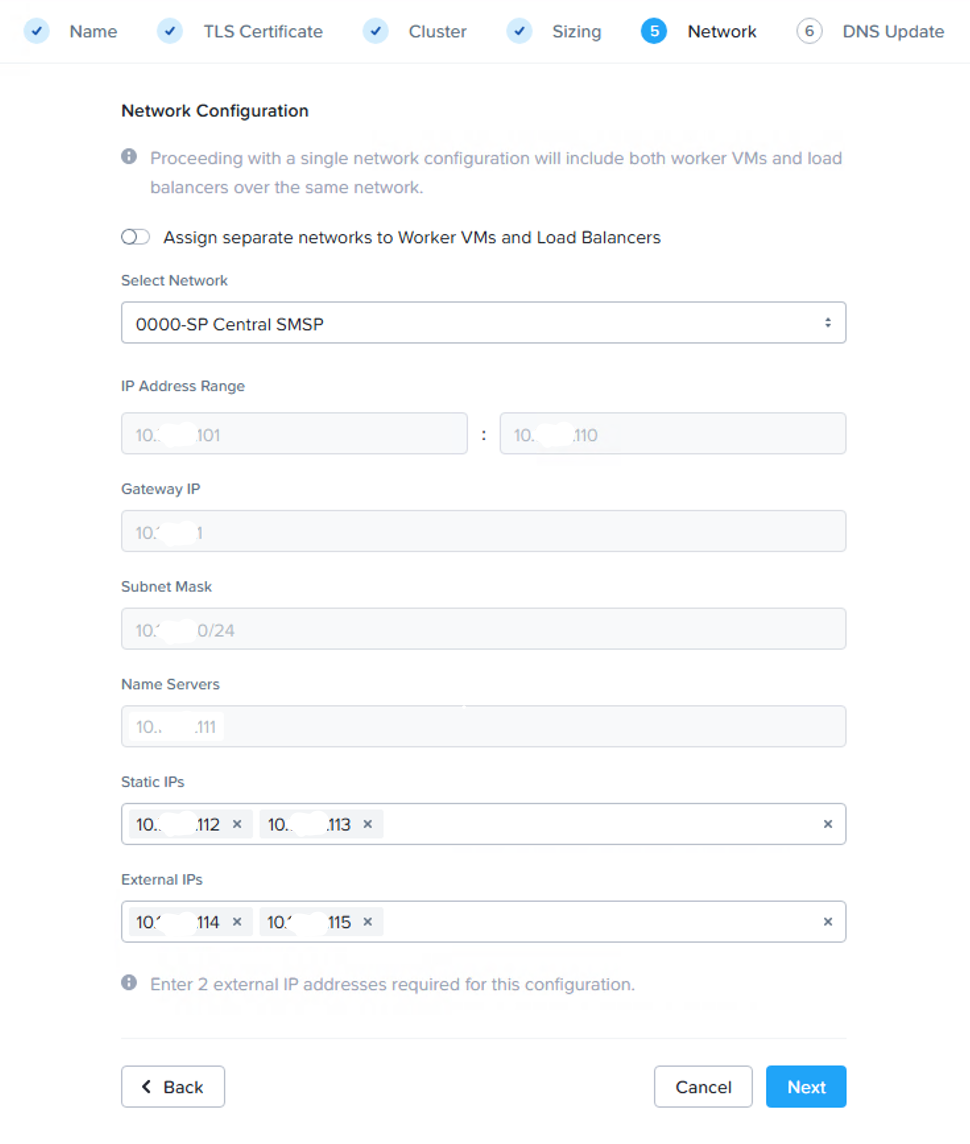
- Choose the network that we created in the previous post, an IPMI-enabled network to host the Nutanix Central.
- Next, put in your DNS mappings.
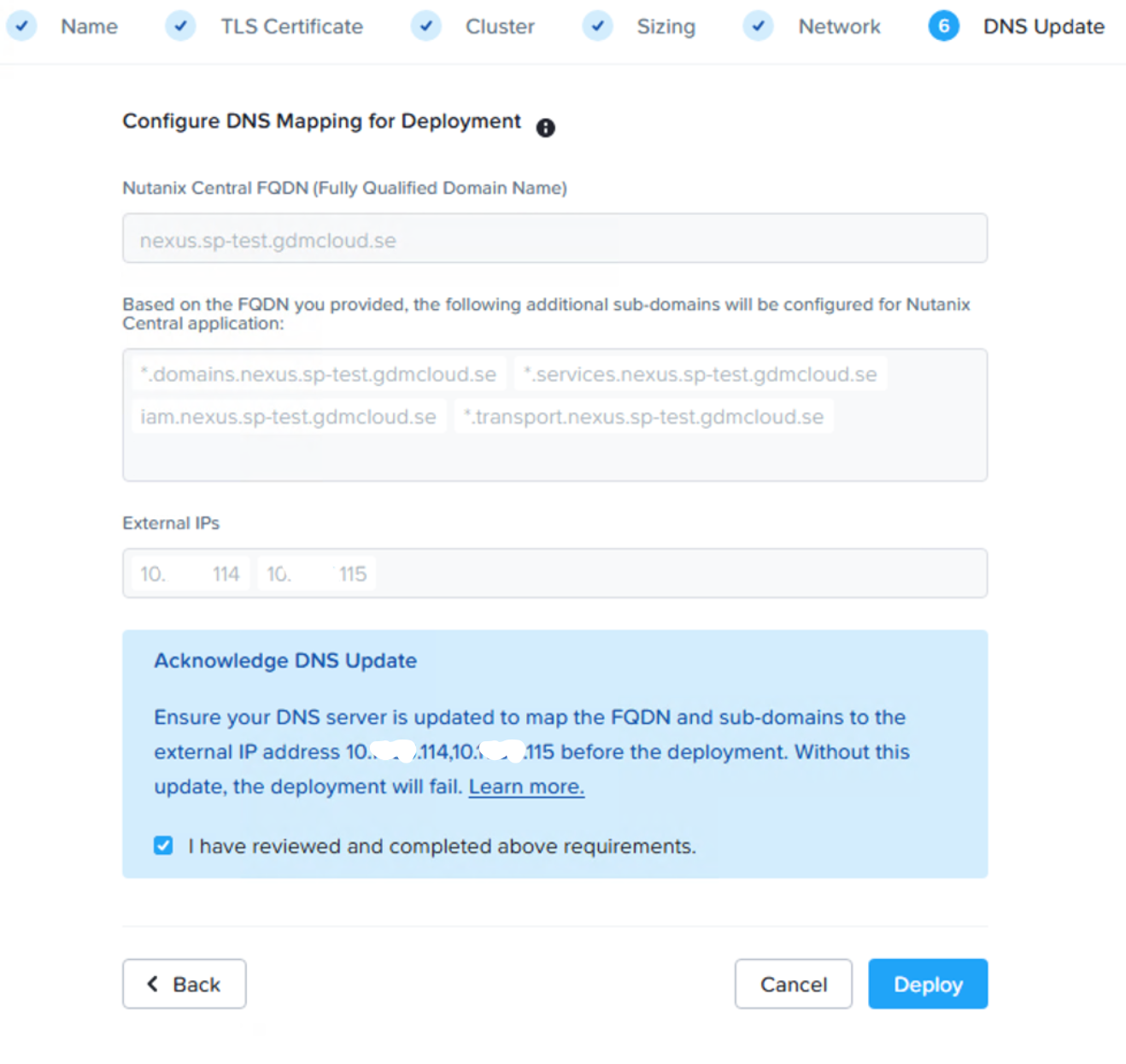
- Note the "I have reviewed and completed above requirements". To be perfectly sure, you can run this script on your DNS server:
$ExpectedIPs = @("10.xx.xx.114", "10.xx.xx.115")
$DnsServer = "127.0.0.1"

# Include child names to verify wildcard resolution for *.domains, *.services, and *.transport.
$TestNames = @(
    "nexus.sp-test.gdmcloud.se",
    "iam.nexus.sp-test.gdmcloud.se",
    "pc1.domains.nexus.sp-test.gdmcloud.se",
    "auth.services.nexus.sp-test.gdmcloud.se",
    "ikat.transport.nexus.sp-test.gdmcloud.se"
)

Write-Host "=== Check DNS for Nutanix Central ===" -ForegroundColor Yellow

$AllPassed = $true

foreach ($Fqdn in $TestNames) {
    try {
        $Result = Resolve-DnsName -Name $Fqdn -Server $DnsServer -Type A -ErrorAction Stop
        $ResolvedIPs = $Result |
            Where-Object { $_.IPAddress } |
            Select-Object -ExpandProperty IPAddress

        $FirstIPMatches = $ResolvedIPs -contains $ExpectedIPs[0]
        $SecondIPMatches = $ResolvedIPs -contains $ExpectedIPs[1]

        if ($FirstIPMatches -and $SecondIPMatches) {
            Write-Host "[OK] $Fqdn -> $($ResolvedIPs -join ', ')" -ForegroundColor Green
        } elseif ($ResolvedIPs.Count -gt 0) {
            Write-Host "[WARNING] $Fqdn returned only: $($ResolvedIPs -join ', ') (expected both: $($ExpectedIPs -join ', '))" -ForegroundColor Cyan
            $AllPassed = $false
        } else {
            Write-Host "[FAIL] $Fqdn returned no A records." -ForegroundColor Red
            $AllPassed = $false
        }
    } catch {
        Write-Host "[ERROR] Could not resolve ${Fqdn}: $_" -ForegroundColor Red
        $AllPassed = $false
    }
}

if ($AllPassed) {
    Write-Host "`nAll DNS checks passed." -ForegroundColor Green
} else {
    Write-Host "`nOne or more DNS checks failed." -ForegroundColor Red
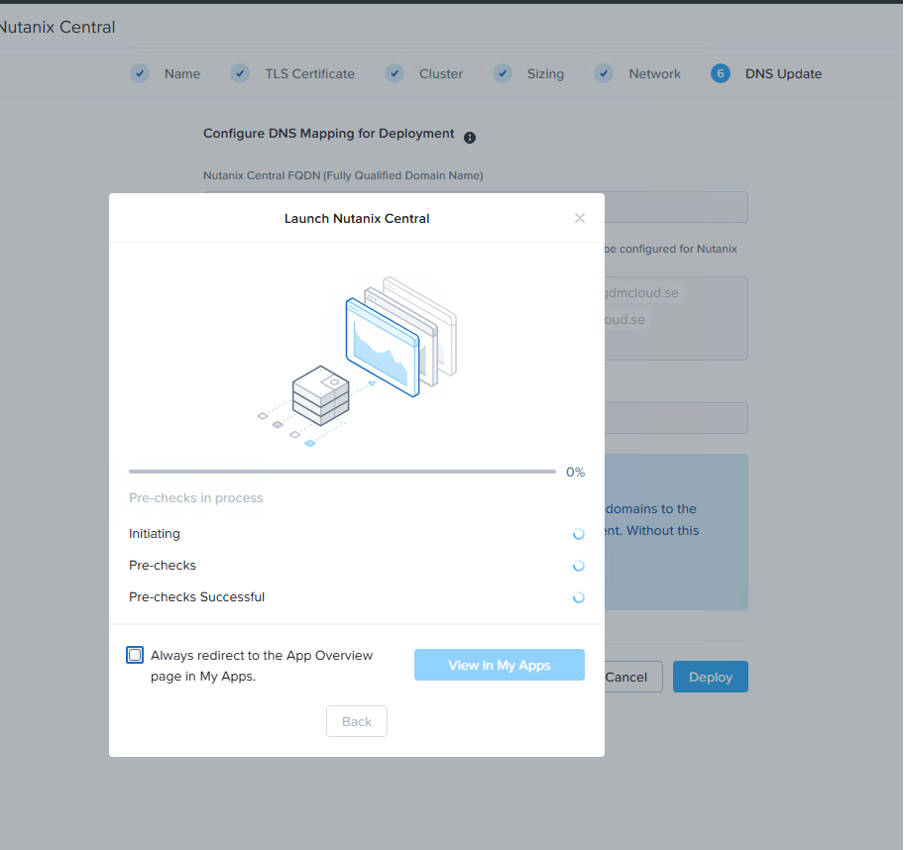
}- Once you have run the check script above and it all checks out, go ahead and click Deploy.
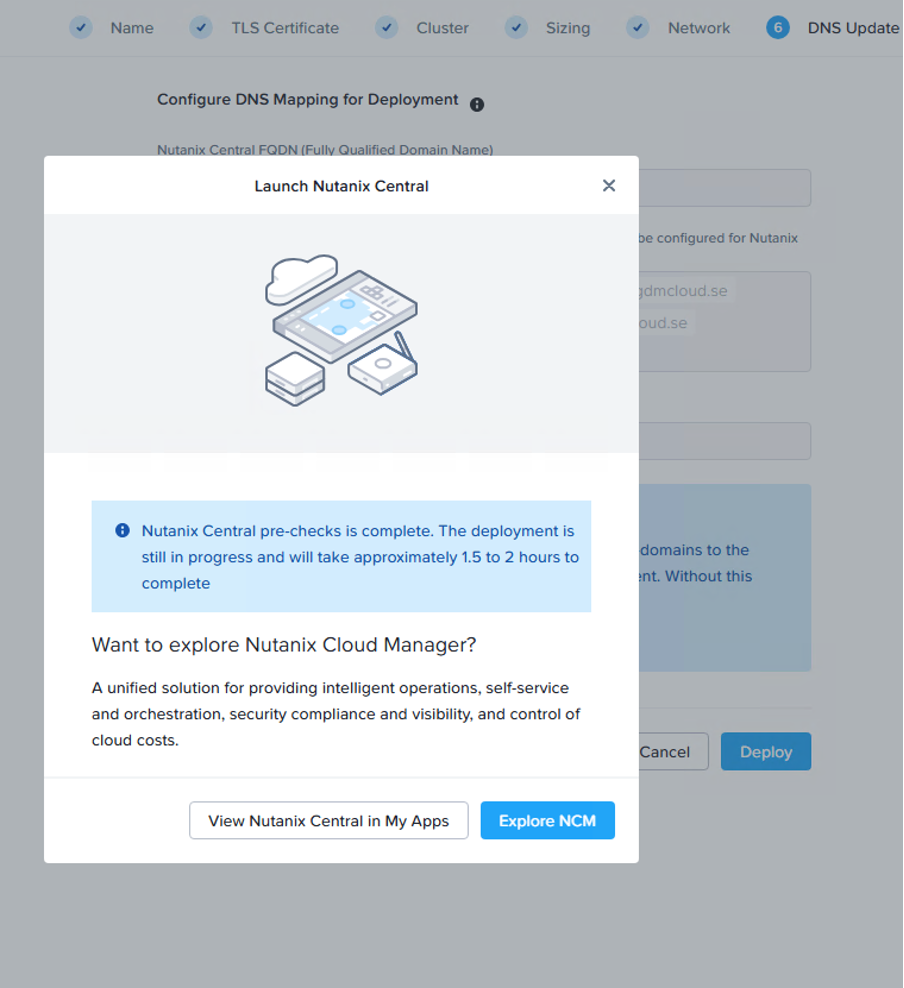
- To follow the deployment process, hit View Nutanix Central in My Apps.
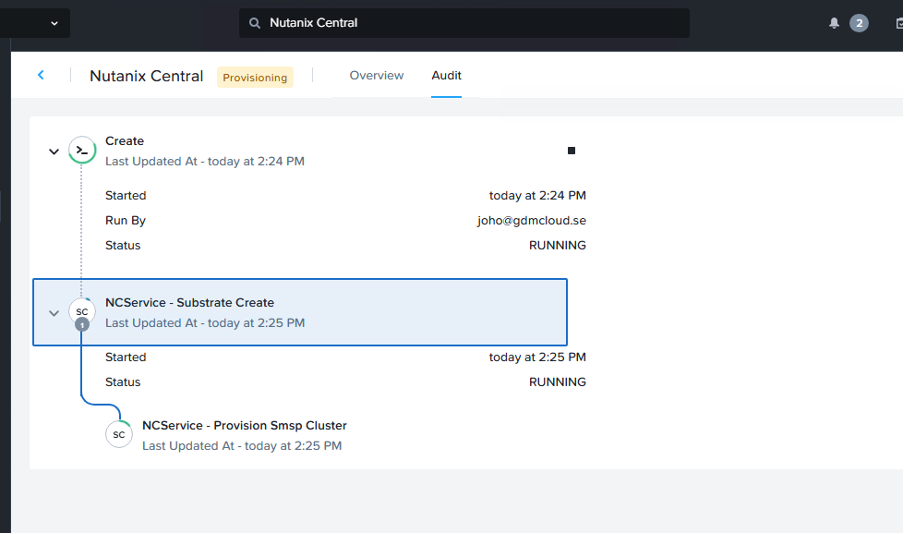
- Here you can follow the progress.
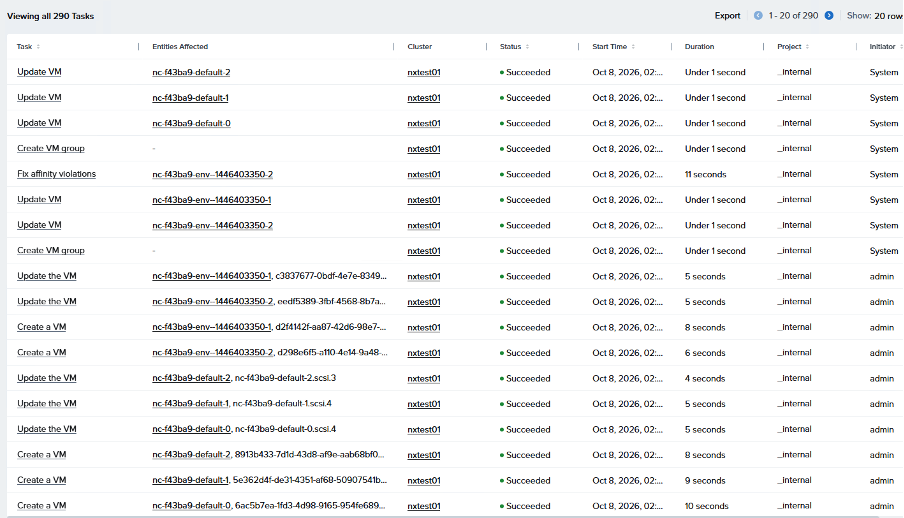
- If we go to the Prism Central tasks, you can see that it starts to create some VMs.
- Once it's deployed, go ahead and browse to the URL you set up. In my case:
https://nexus.sp-test.gdmcloud.seand log in with the passwordNutanix.123, then set your own new local admin password. - Now we need to configure an IDP and log in as a Nutanix Central admin.
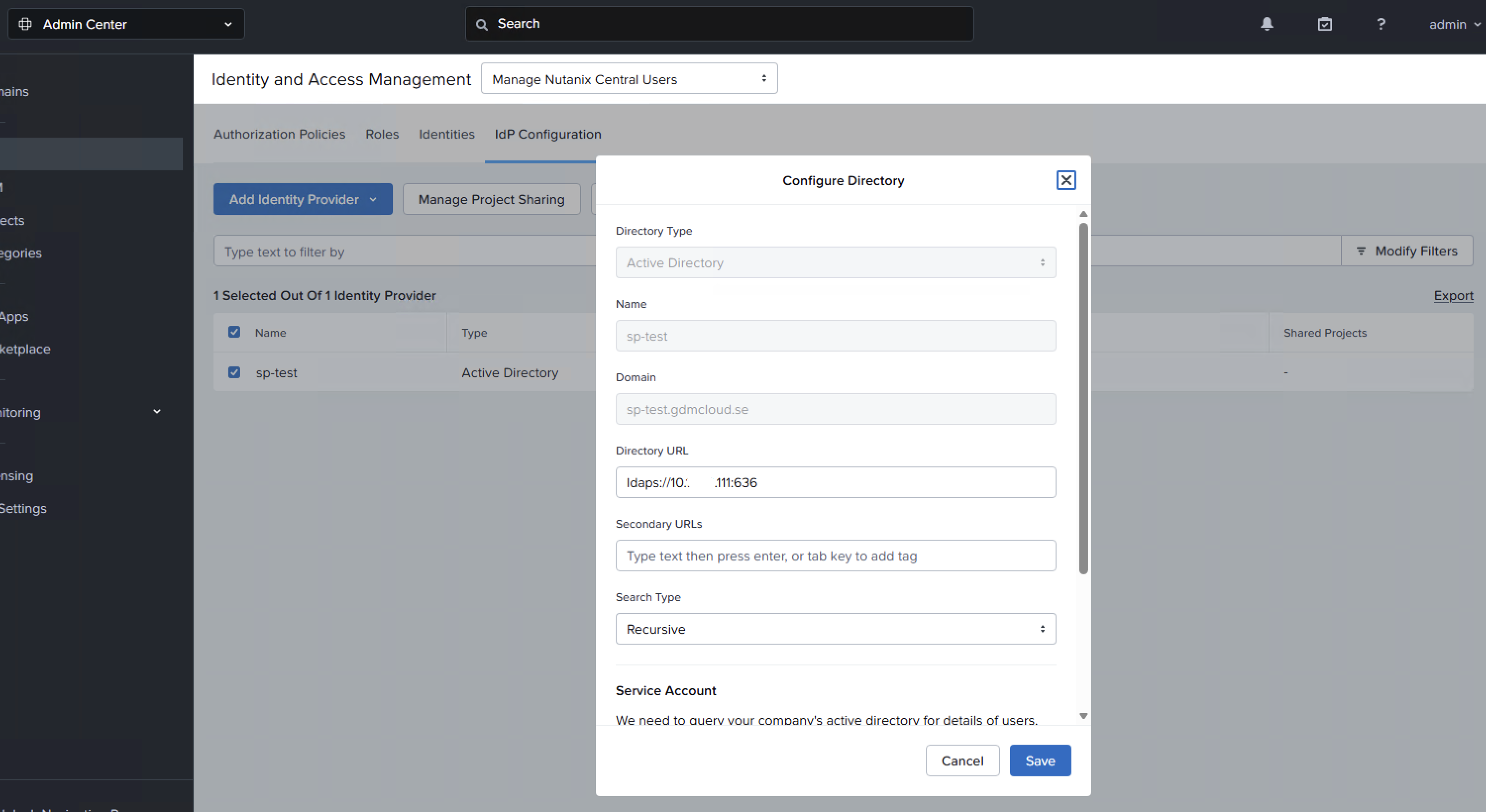
- IN Nutanix Central go to Admin Center -> IAM -> IDP and configure your domain controller as your IDP, then enter an LDAP user account.
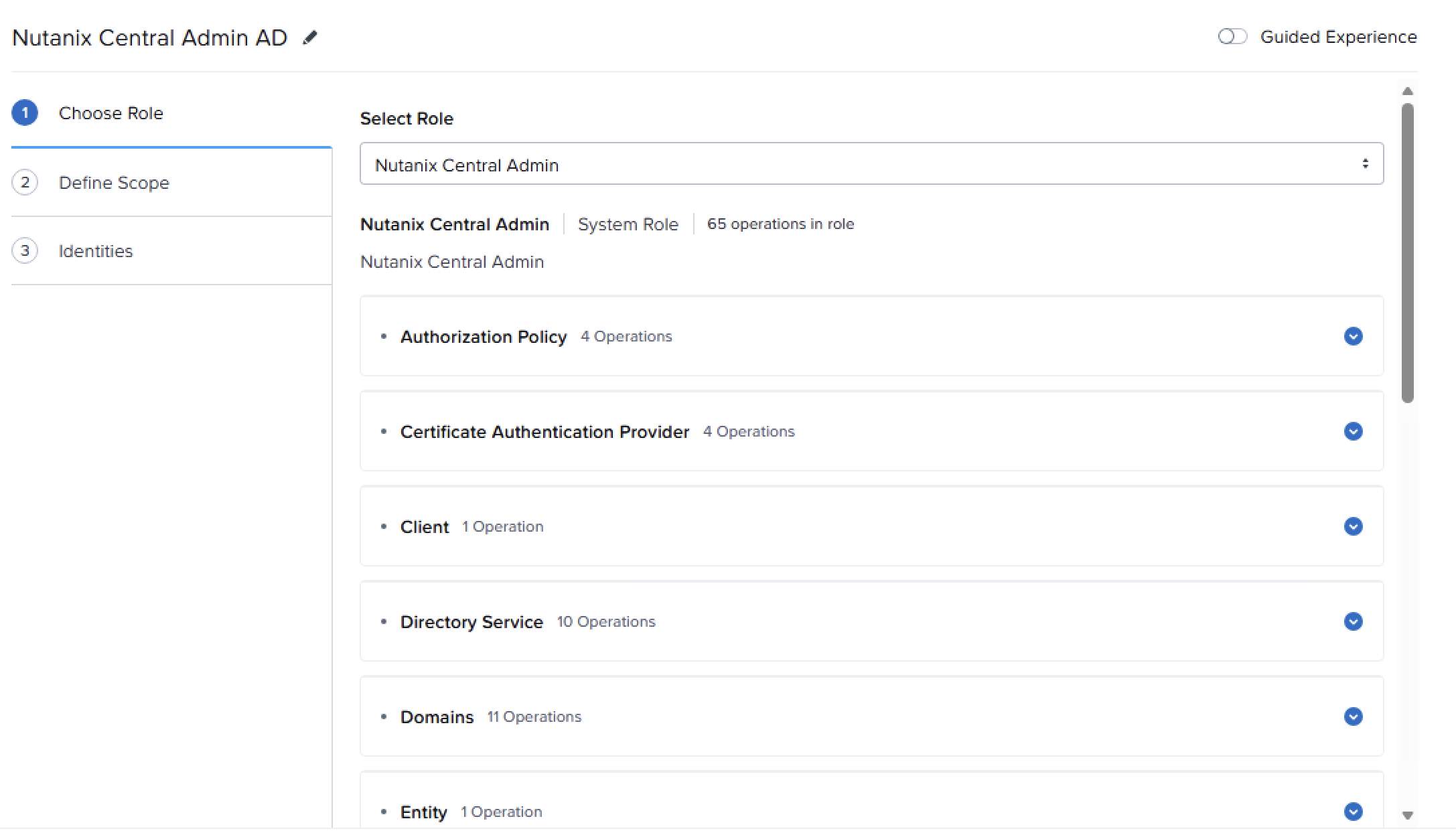
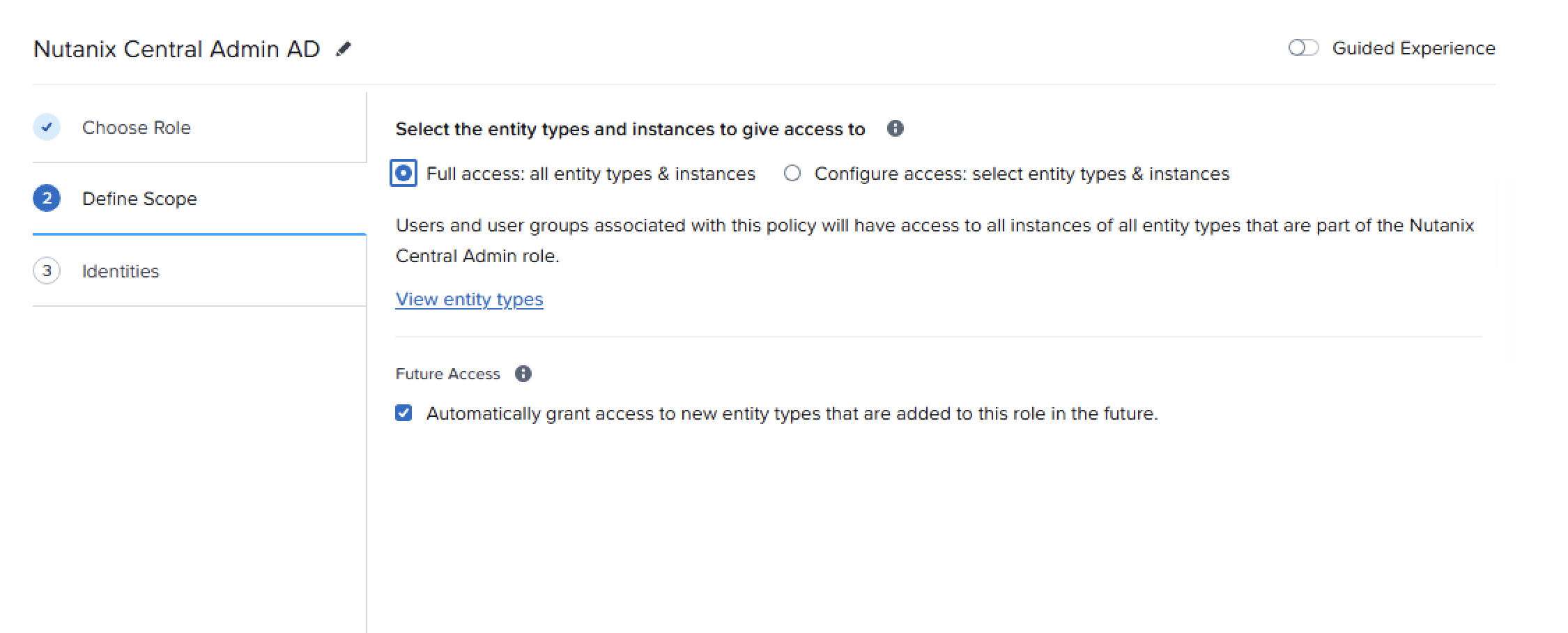
- Then it's time to create an authorization policy. I created a Nutanix Central Admin policy called Nutanix Central Admin AD.
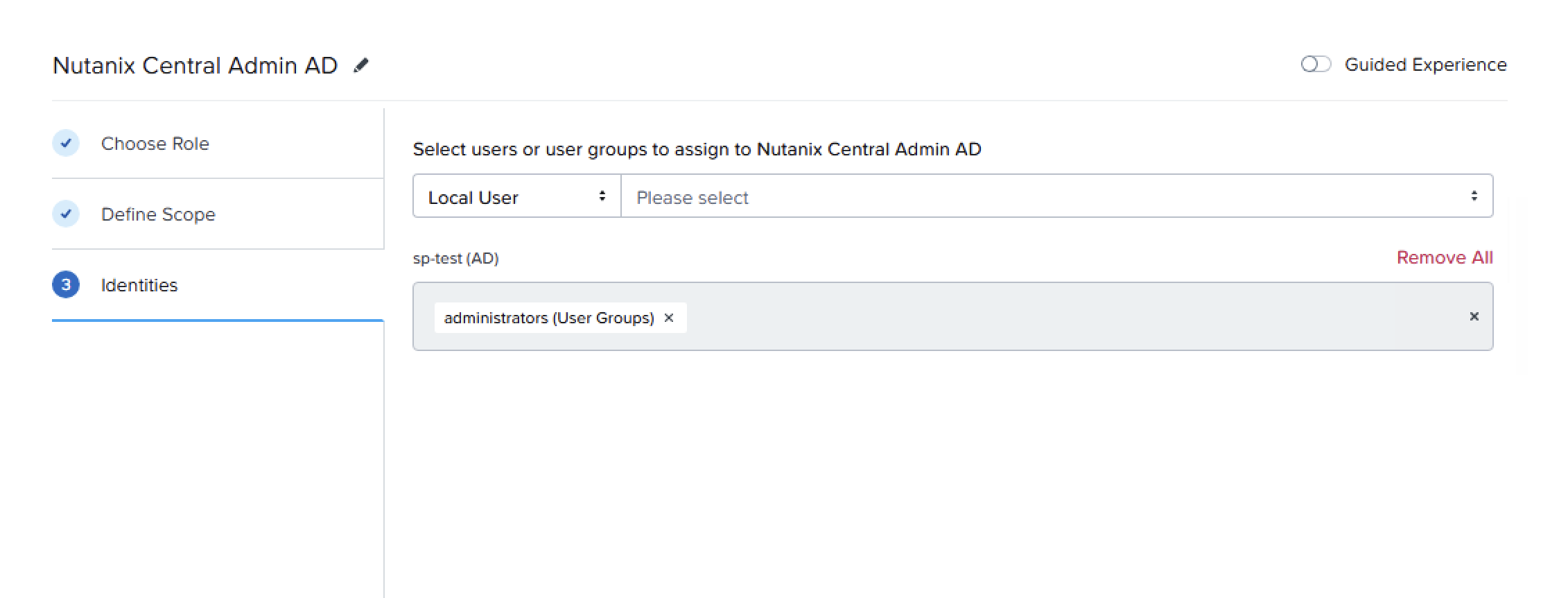
- Log in with a user in the group that you assigned to the authorization policy, and it's time to connect your PC to your NC.
Ensure that you also have the identity provider that you configured for the Nutanix Central Admin group configured as a Super Admin in the Prism Central that you're connecting. Otherwise, the registration of Prism Central will fail. (Learned this the hard way 😄)
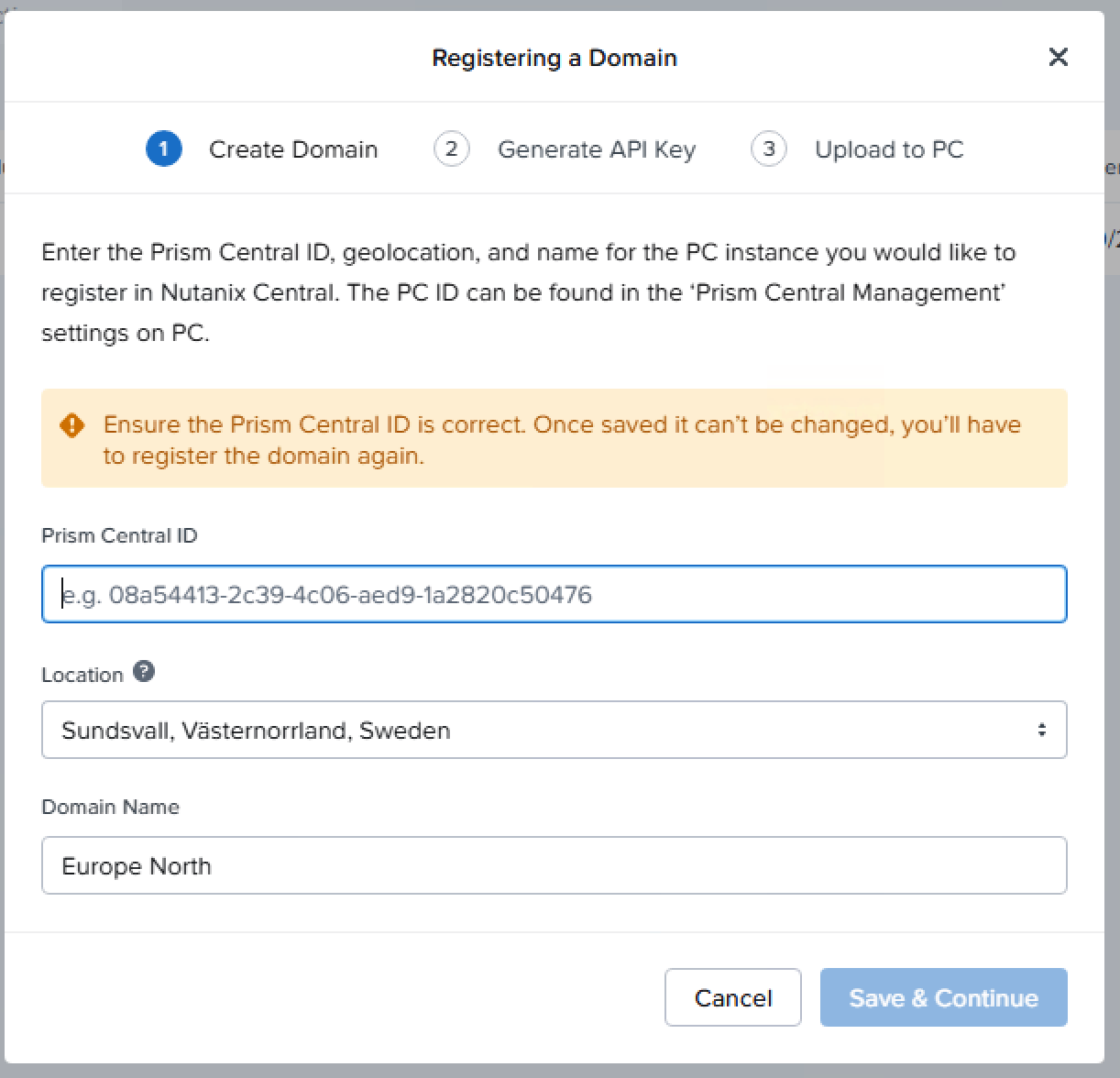
- Go to the Admin Center in Nutanix Central and click Domains, then click Register a Domain.
- Enter the Prism Central cluster ID (can be fetched with
ncli cluster infofrom a PC CVM).
- Go to step 2 and generate an API key.
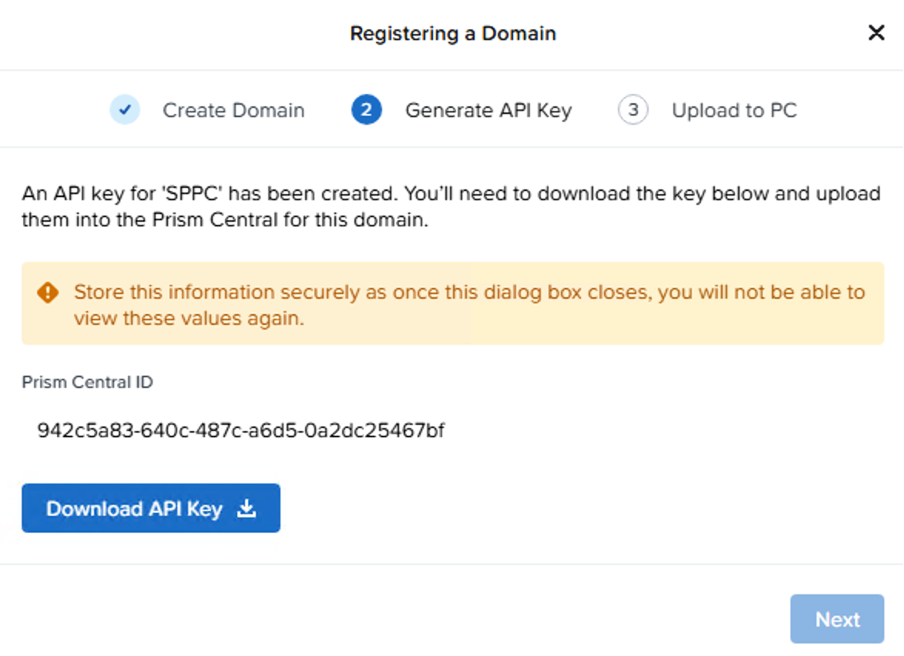
- Download the json file containing the API key.
- Go to Prism Central -> Admin Center -> Settings -> Register to Nutanix Central.
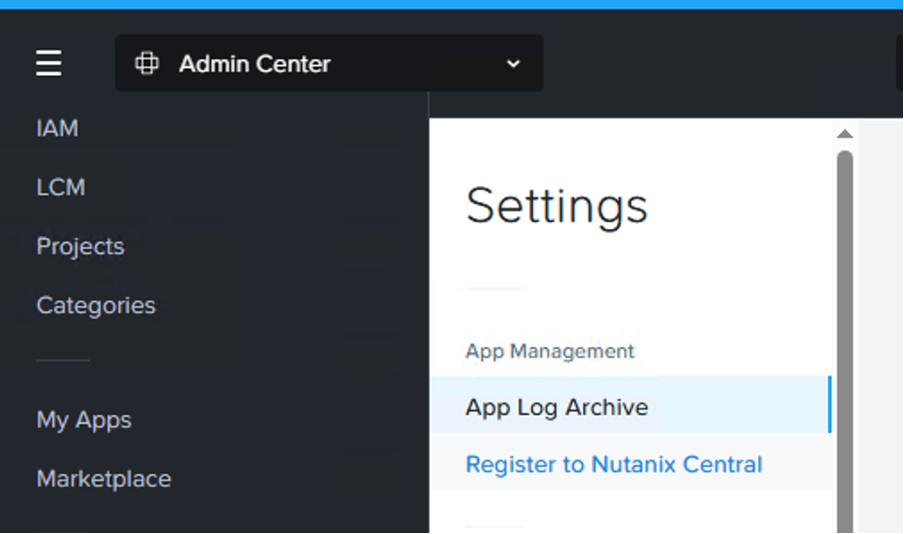
- Click Skip on step one since you already deployed Nutanix Central.
- In step two, press Skip here as well.
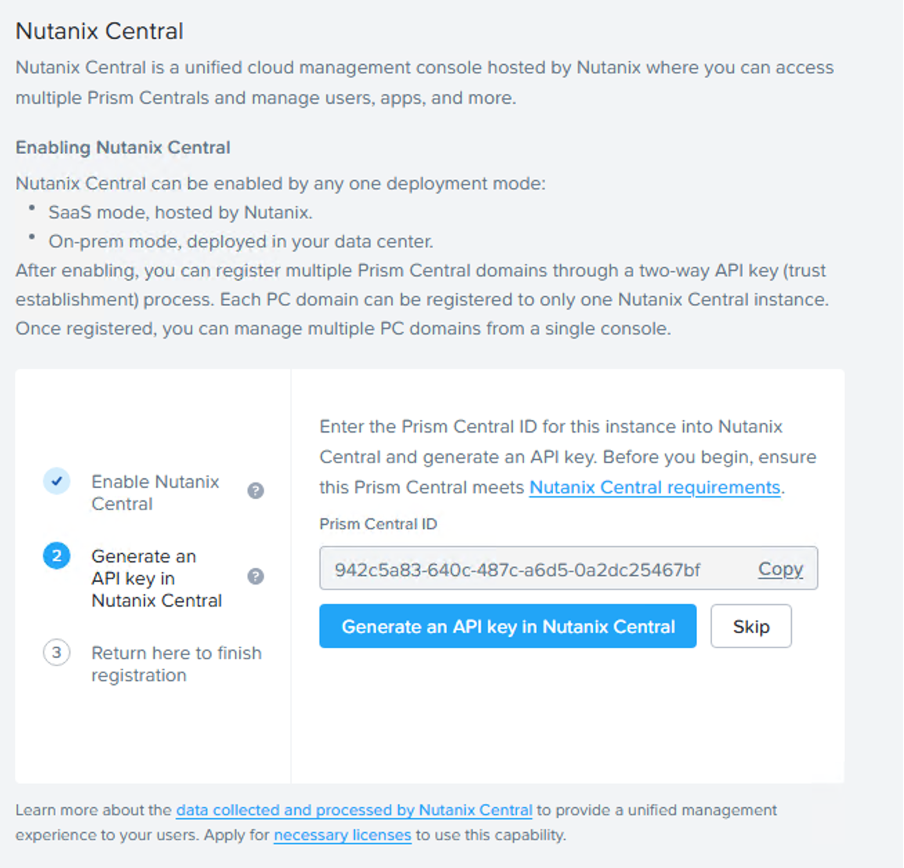
- On step 3, enter the downloaded JSON file that contains the API key.
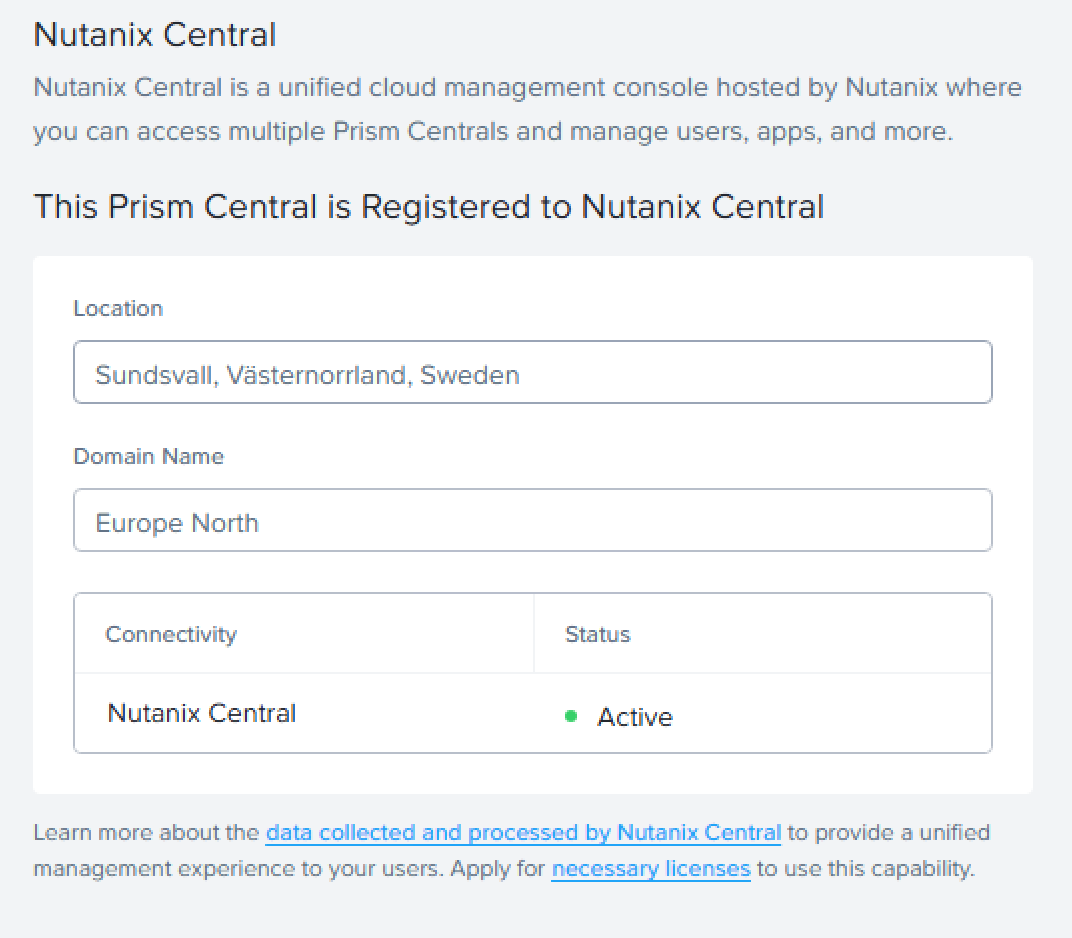
- A successfully registered Prism Central would look something like this:
- If we log back in to Nutanix Central, we'll also see the domain registered there.

And that's it, folks - you have now successfully deployed Nutanix Central on-prem. Make sure to stay tuned for post three about deploying Service Provider Central later.