NTC Tech Connect - Day 2 - Deploying SP Central - Part 3

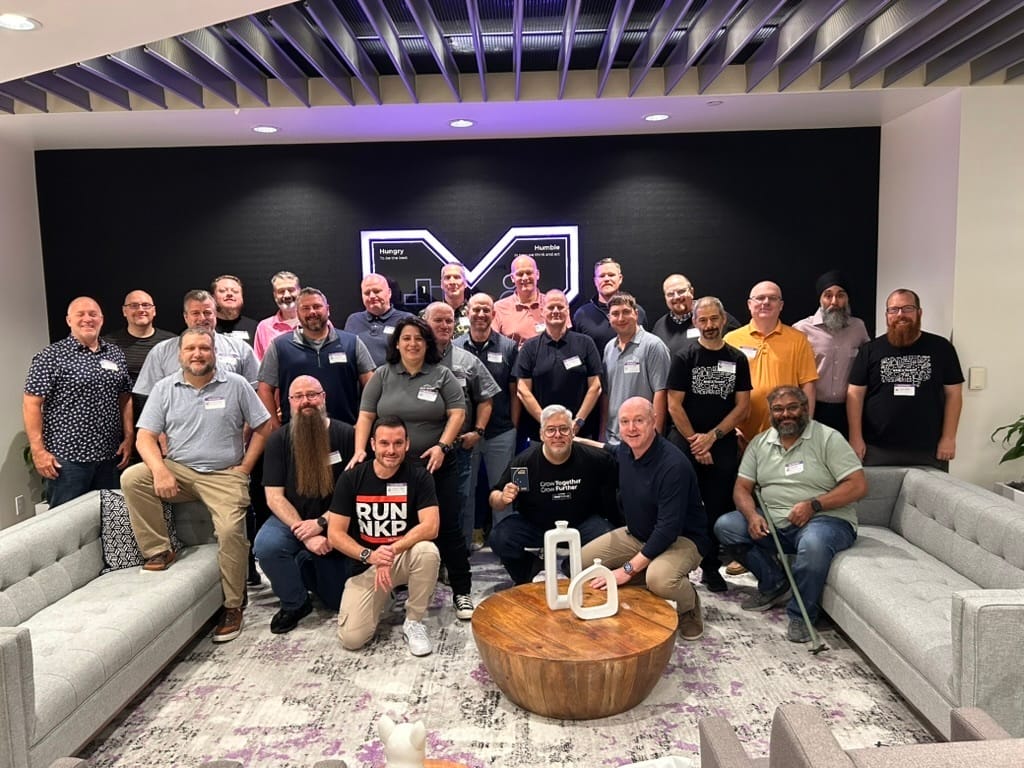
So the first day was packed with sessions around cloud native and what Nutanix can do around Kubernetes with NKP (Nutanix Kubernetes Platform). I wrote a blog post series around NKP after the last NTC Tech Connect back in 2024.
 Jonas Högman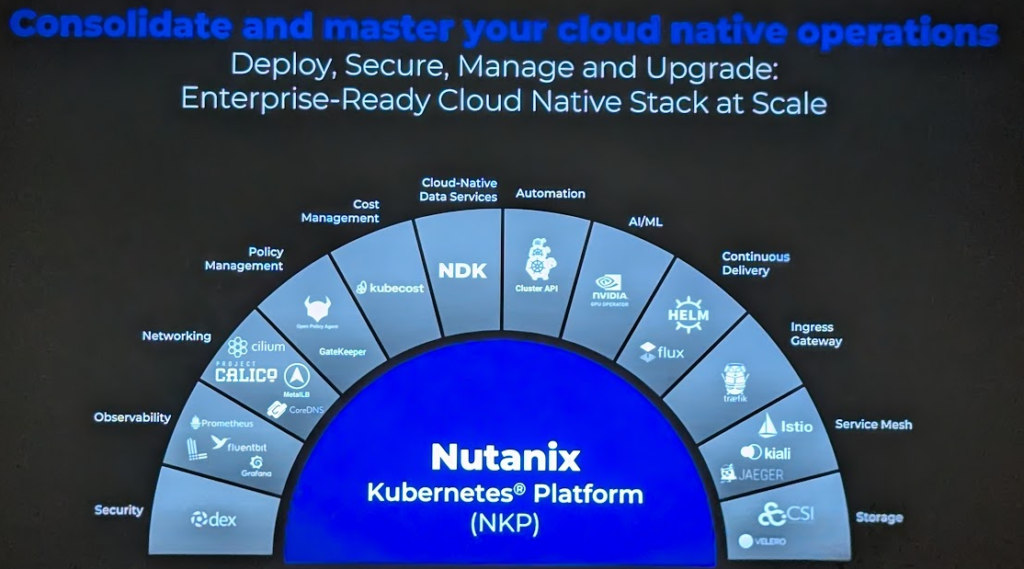
A lot has happened since I deployed it back then, and a lot of new features have become available. There will be more on that in my summary post of the event coming out later.
Now, let's continue with the deployment of SP Central.
Deploying
SP-Central
In the last post we deployed Nutanix Central, configured our IAM, and joined Prism Central to Nutanix Central, so make sure to check out posts one and two in the series.
 Jonas Högman
 Jonas Högman
Now it's time to deploy SP Central.
- Log in to your Prism Central instance and go to Marketplace. Find SP Central and click Get and then Deploy.
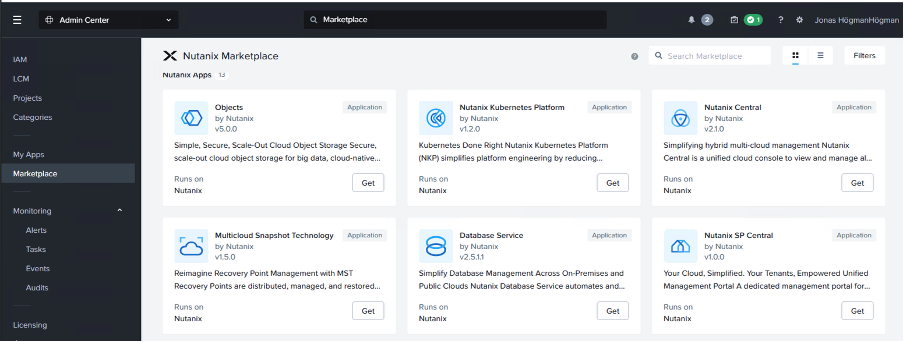
- On the first screen of the deployment, enter the FQDN of SP Central that we created in post 1. In my case it's
enter.sp-test.gdmcloud.se, and click Next.
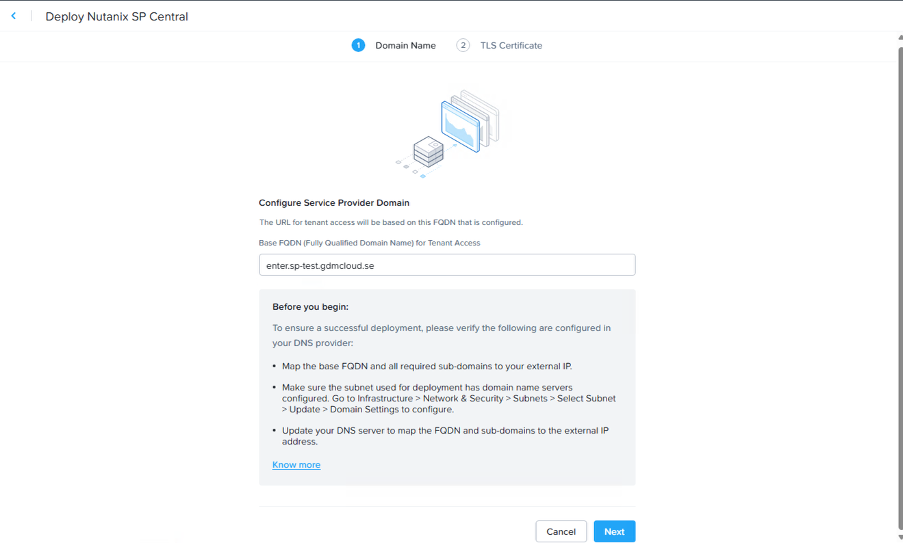
- In the next step, upload the certificates that we created on our CA in post 2, and hit Deploy.
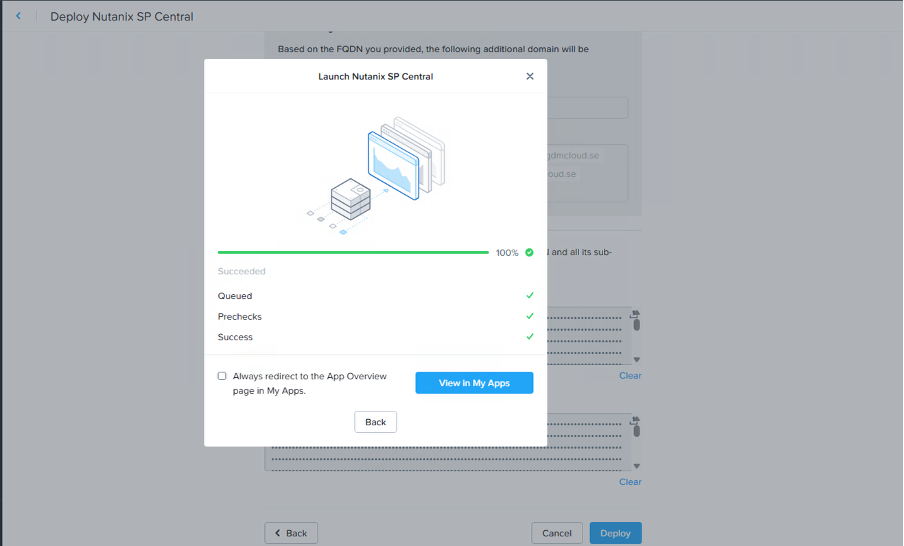
- After every precheck is green, you can view the progress in My Apps. Once the process is 100% done, go back into your Nutanix Central instance and create a new Authorization Policy so that your user also gets the Service Provider Admin privilege.
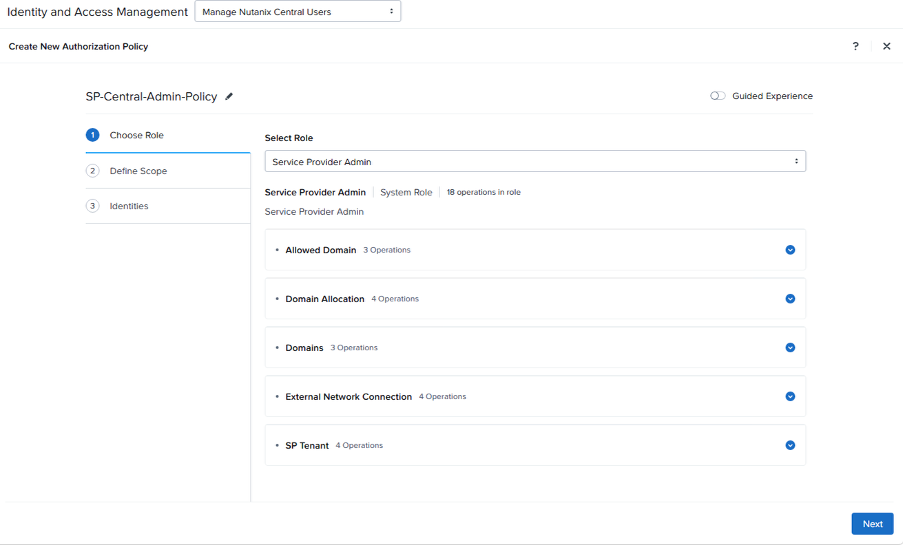
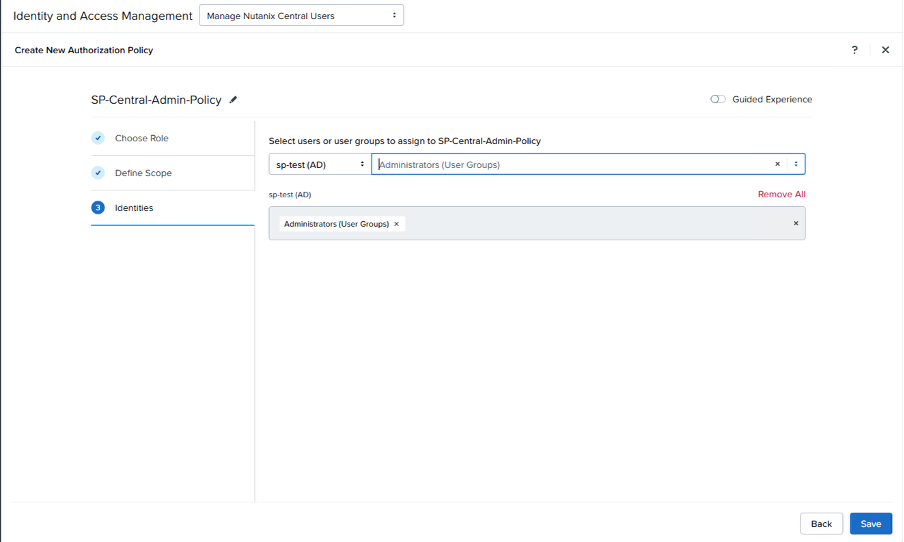
- Once that's done, log in to SP Central by clicking Open on SP Central in My Apps in Prism Central. In our case, the URL is
https://iam.nexus.sp-test.gdmcloud.se/ui/iam/login? - Log in with your admin account that you gave the SP Admin right to above.
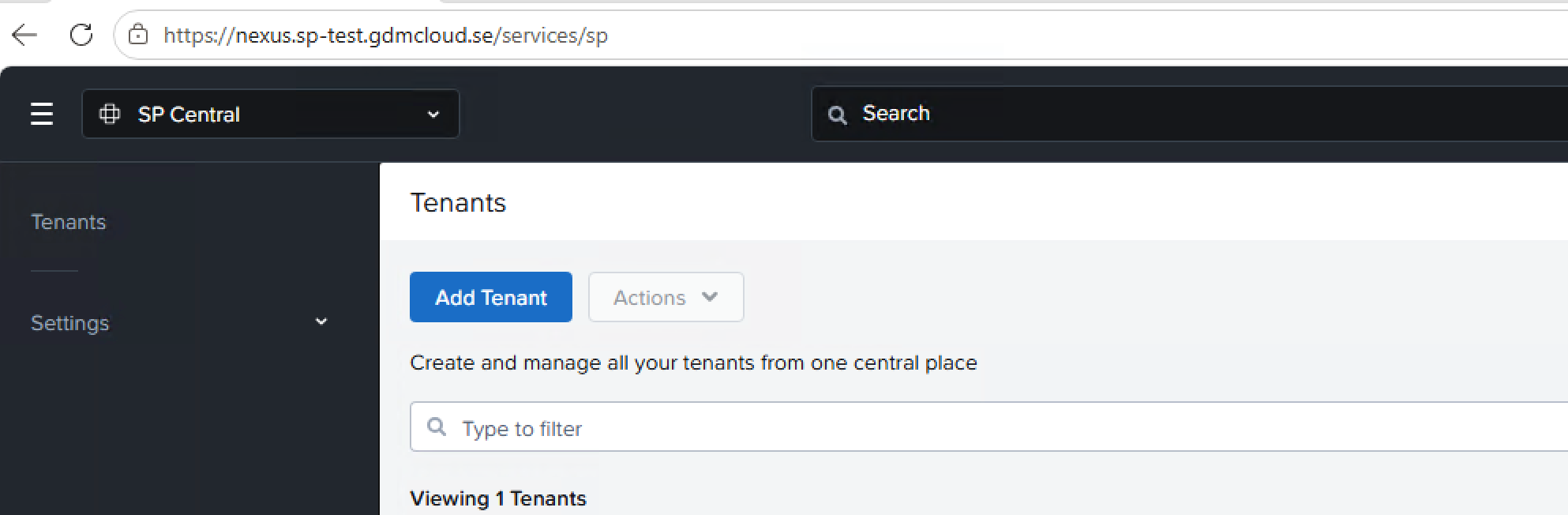
- Now it's time to create our first tenant, so go ahead and press Add Tenant.
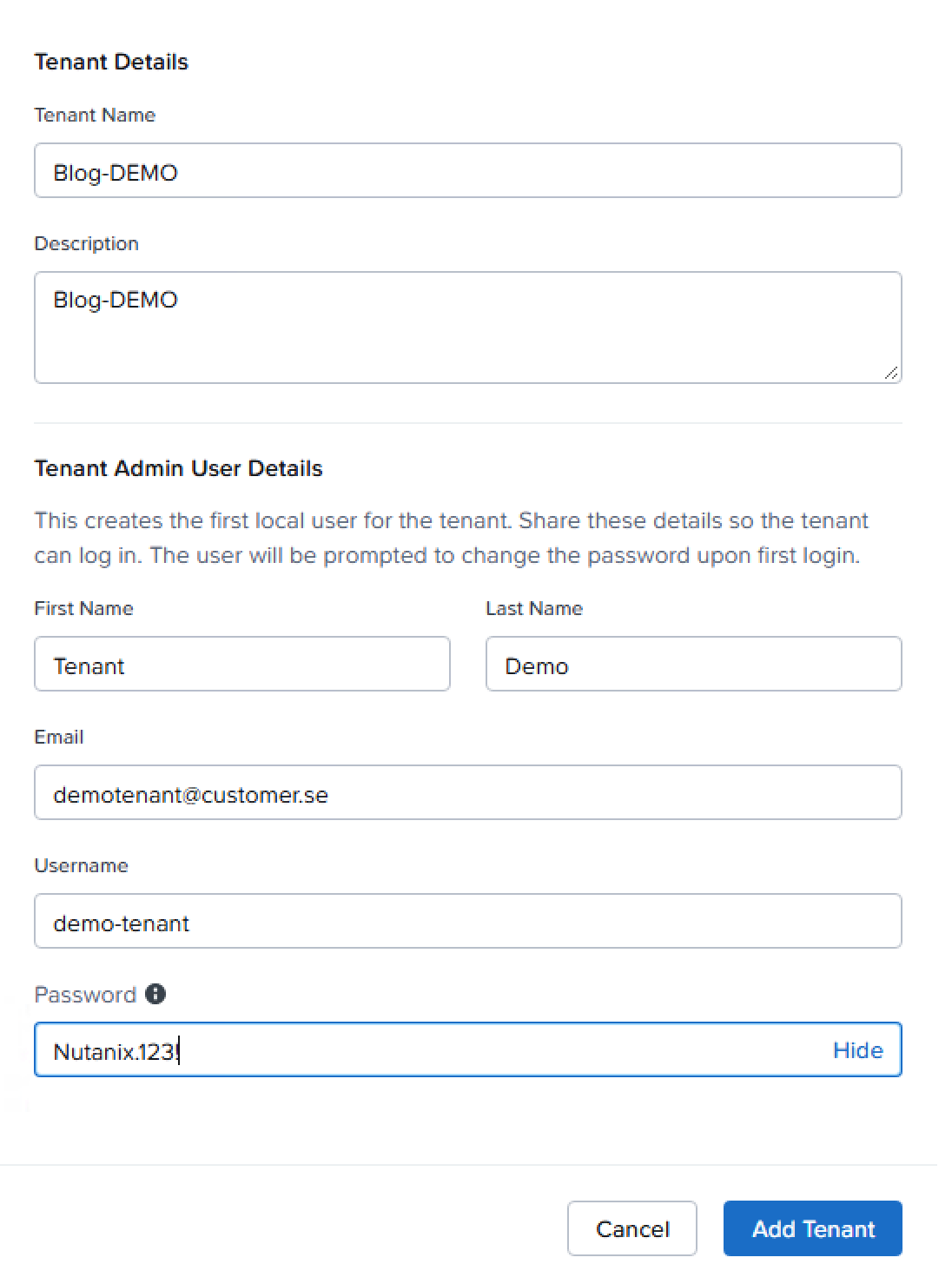
- Give the tenant a name and fill out the form. The user that you'll create will later be used for the tenant's first login.
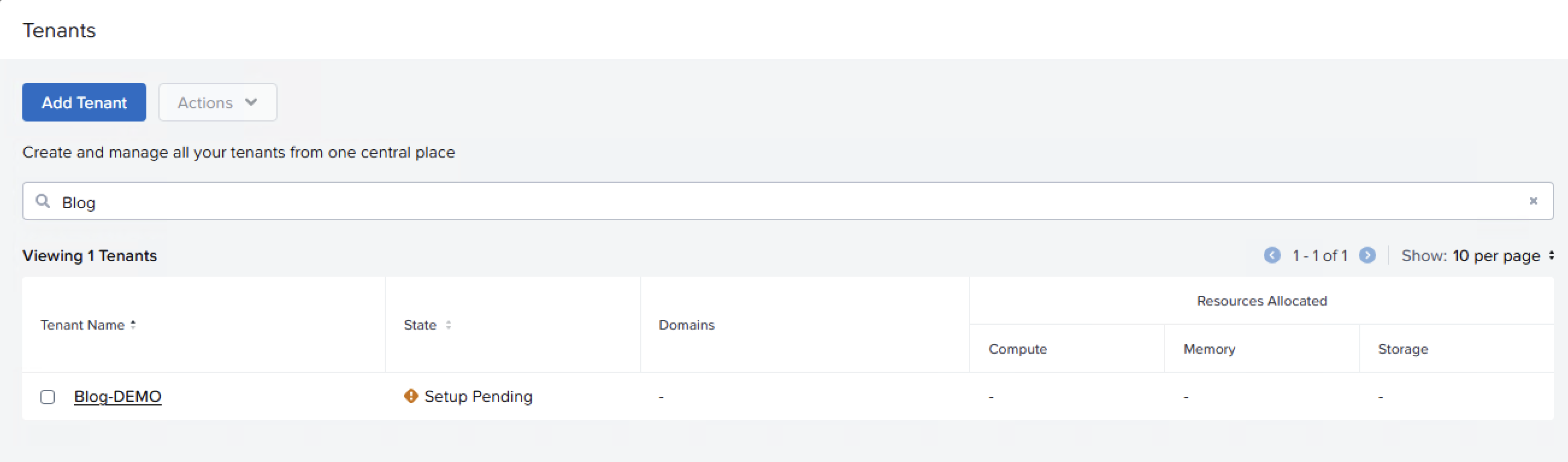
- When the tenant is done provisioning, you'll see it in the list of your tenants. Click the text to finish the setup. Select the domain that the tenant will be able to provision workloads in.
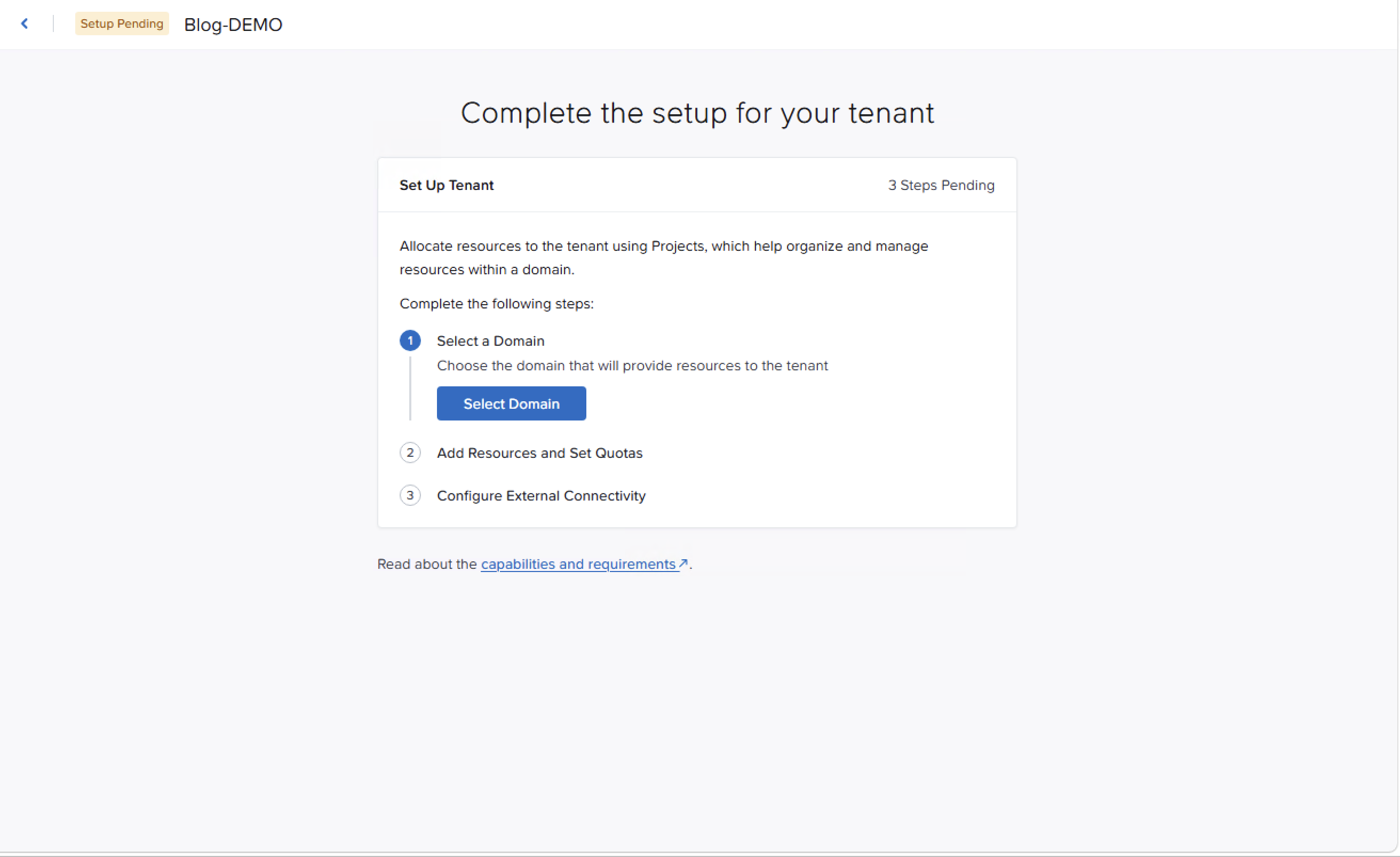
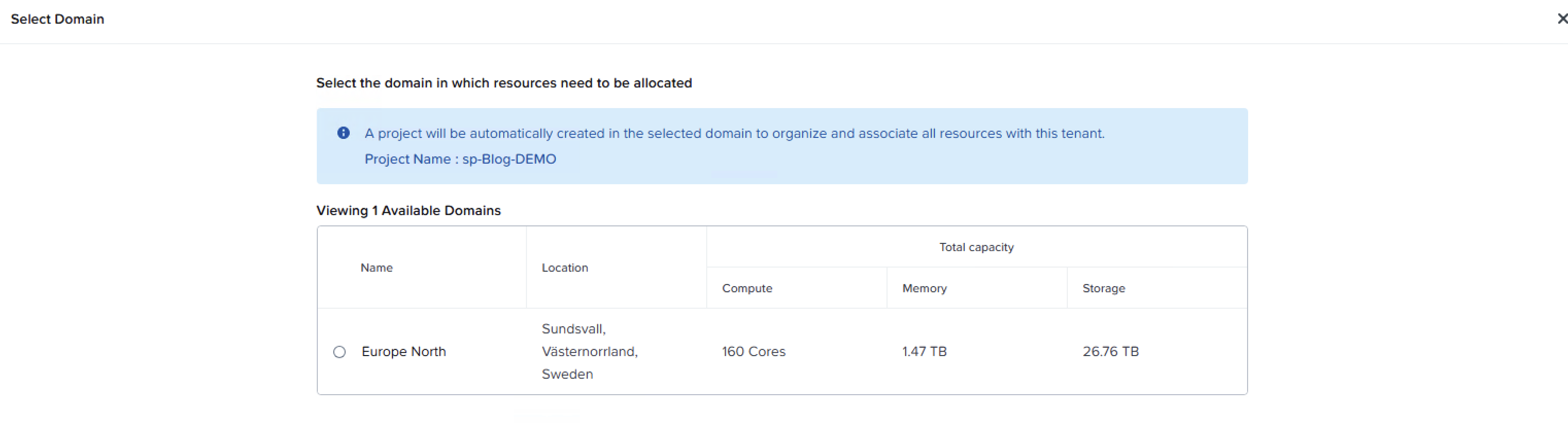
- For this demo we only have Europe North as a domain in Nutanix Central. Once you have configured the domain, click Add Resources and Quotas.
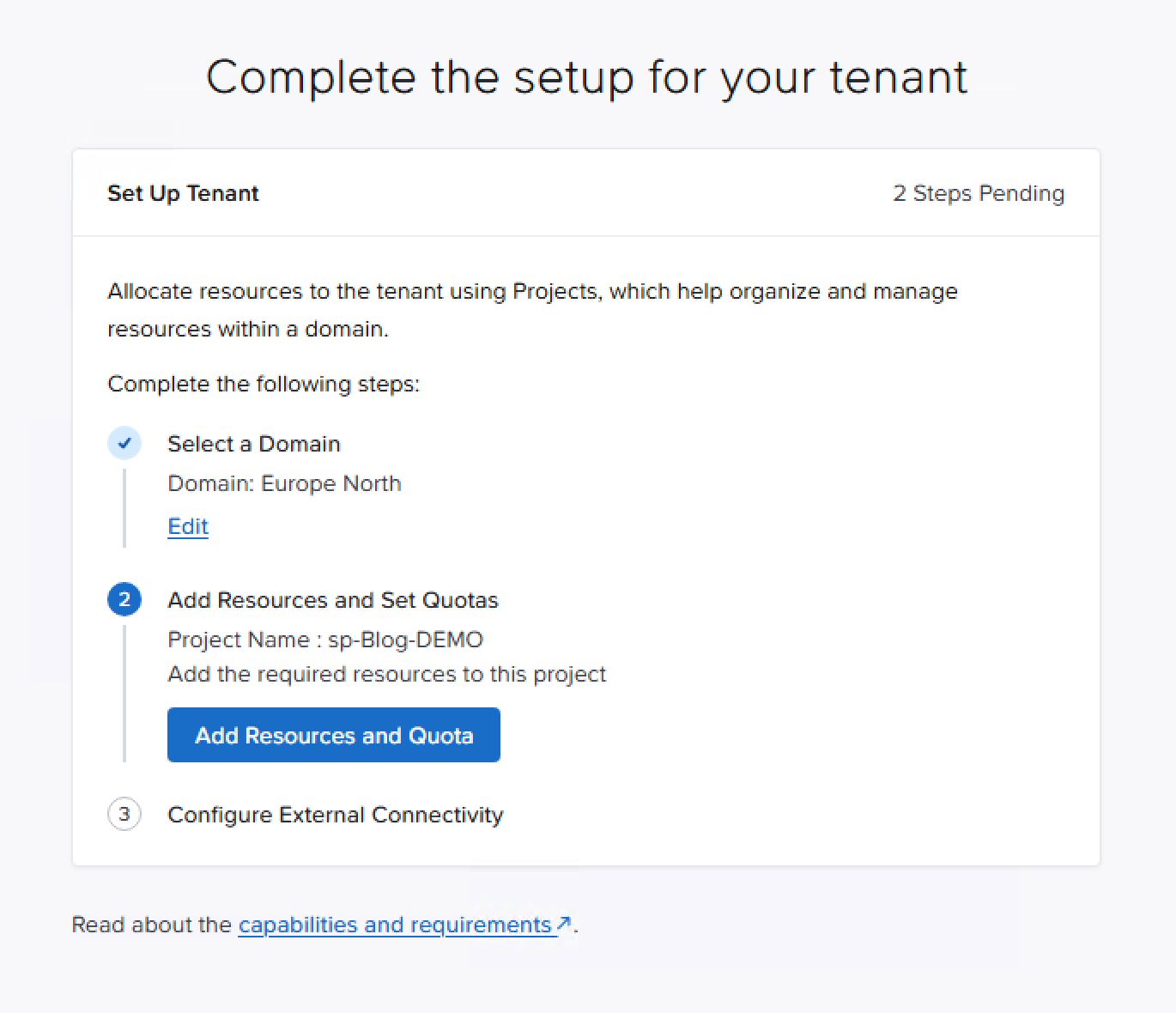
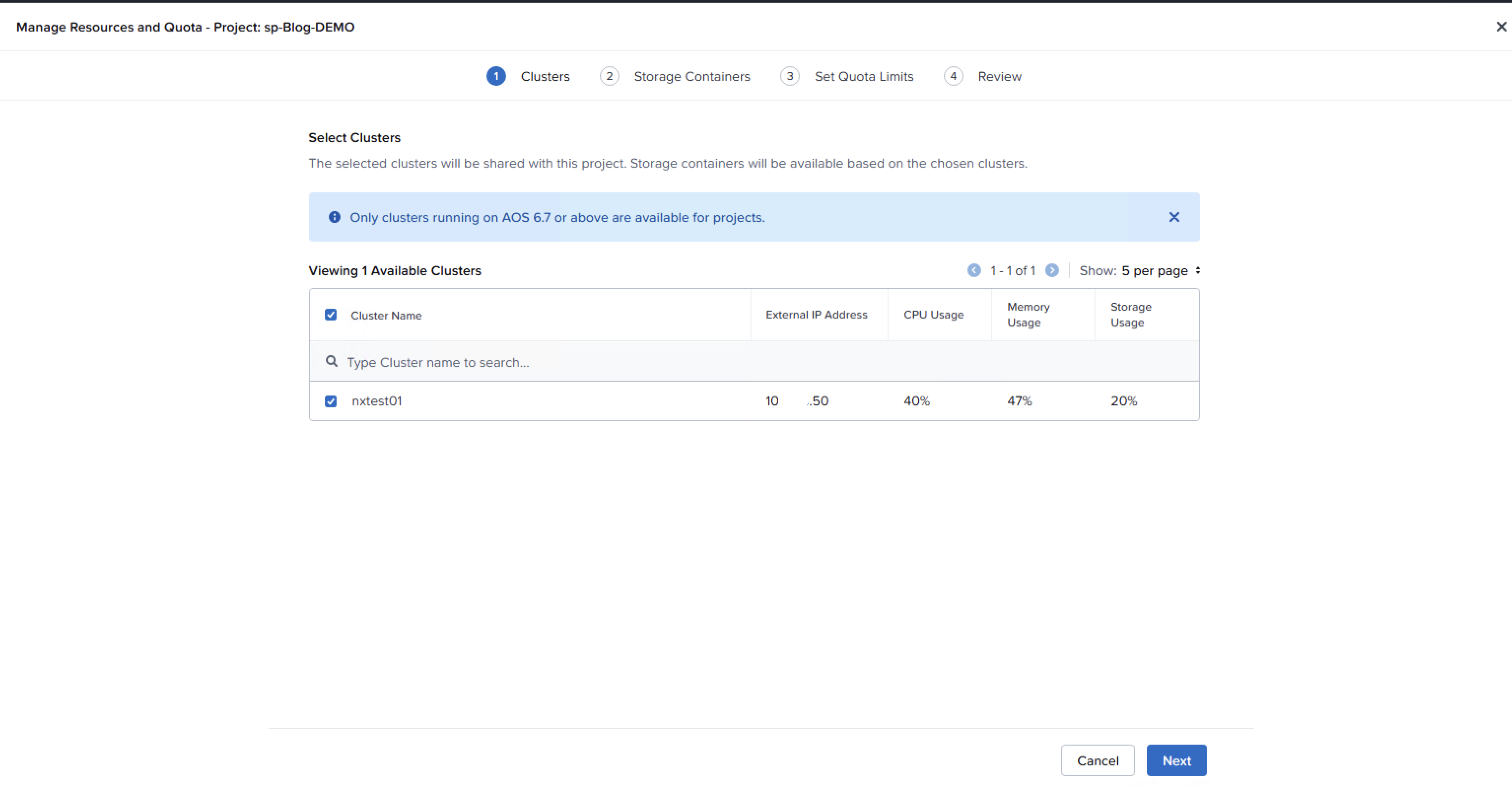
- Select all the PE clusters that you want the tenant to be able to deploy workloads in. Hit Next.
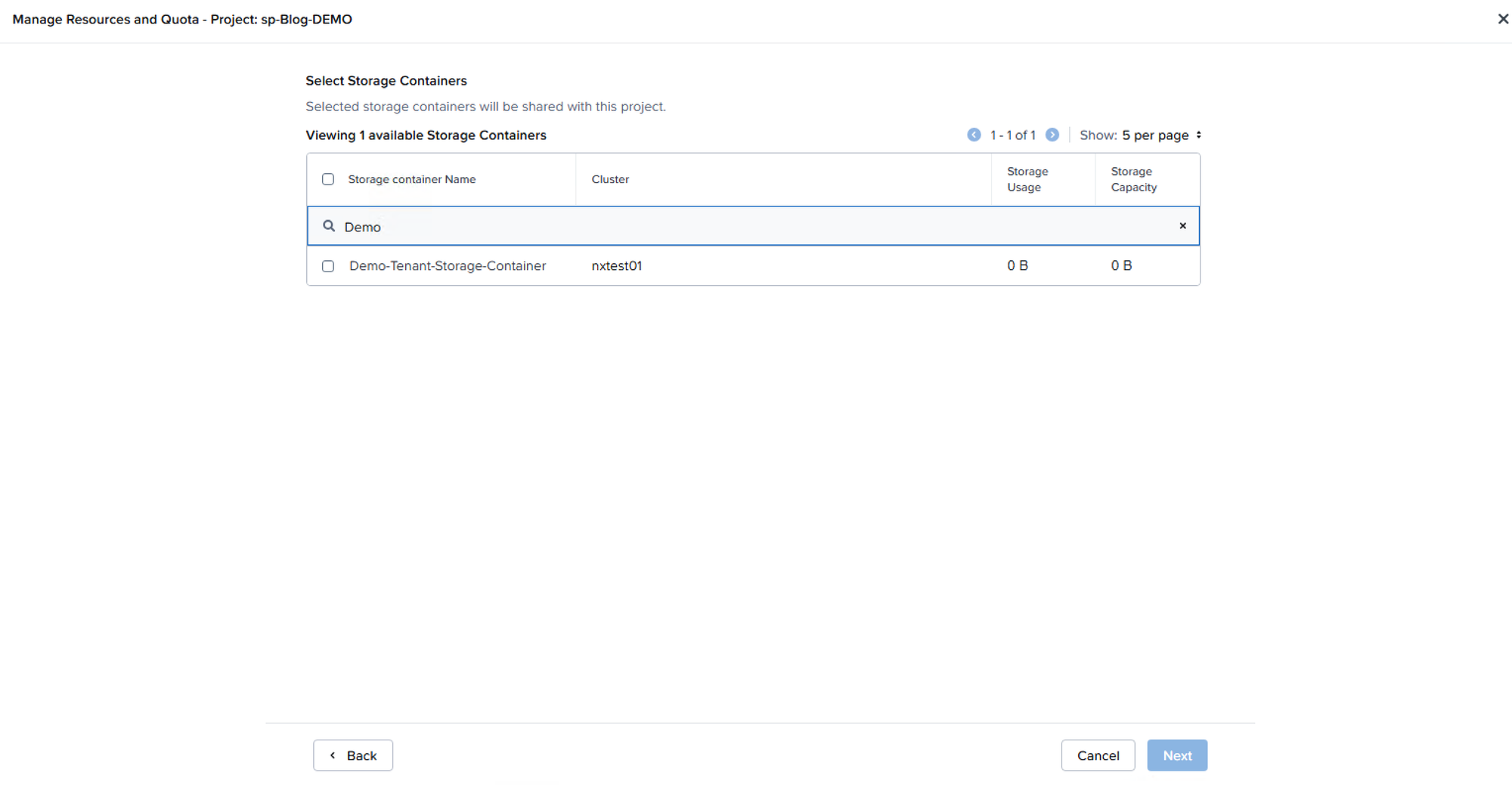
- On page two of the wizard, you'll need to select which storage container the tenant's workloads will be deployed in. The best practice here is to create one storage container for the customer. There is no option to do that from the wizard, so you need to do that in Prism Central or Element. If you have more clusters, create them on all clusters.
- Add your quota limits for your tenant.
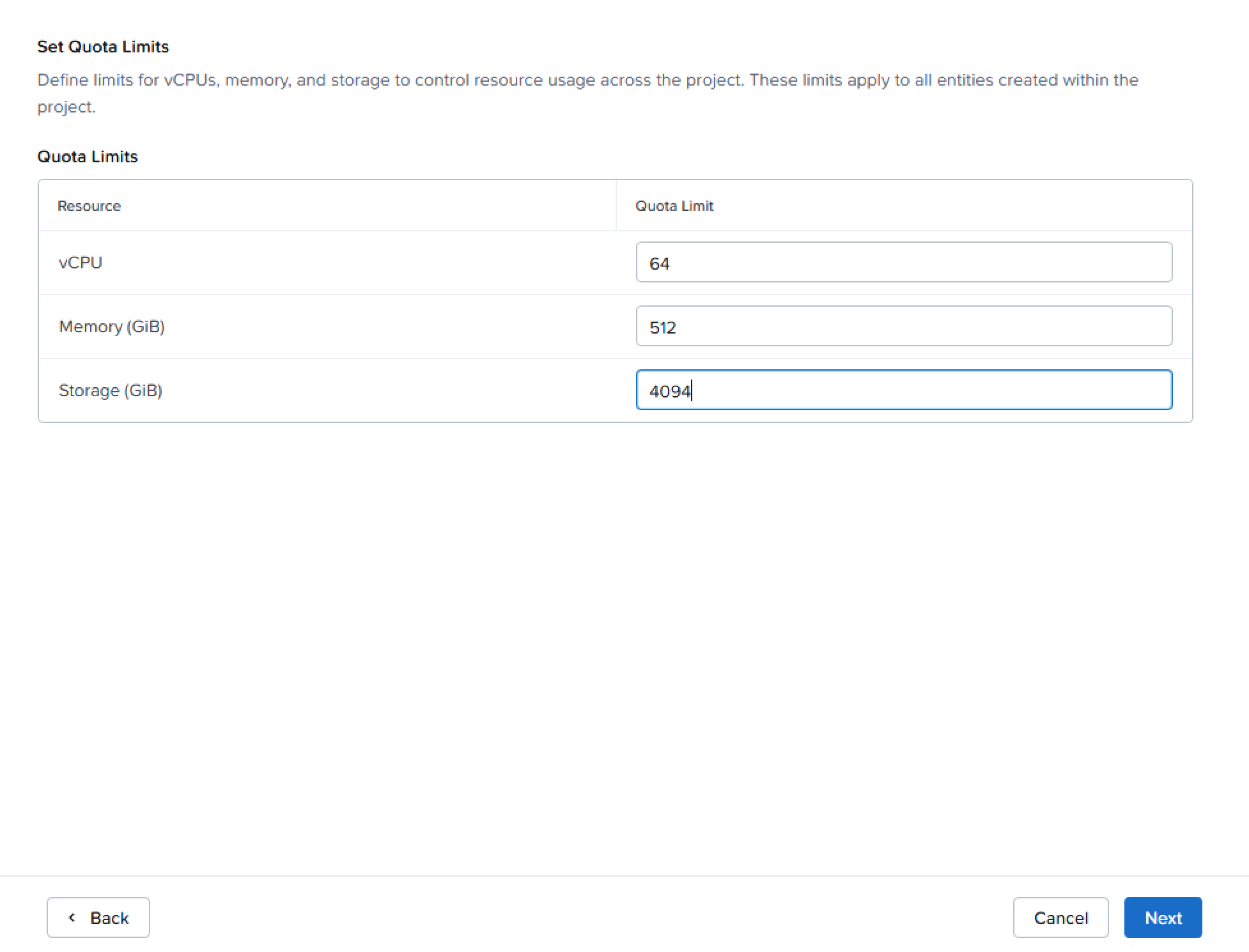
- Hit Save on the last step in the wizard.
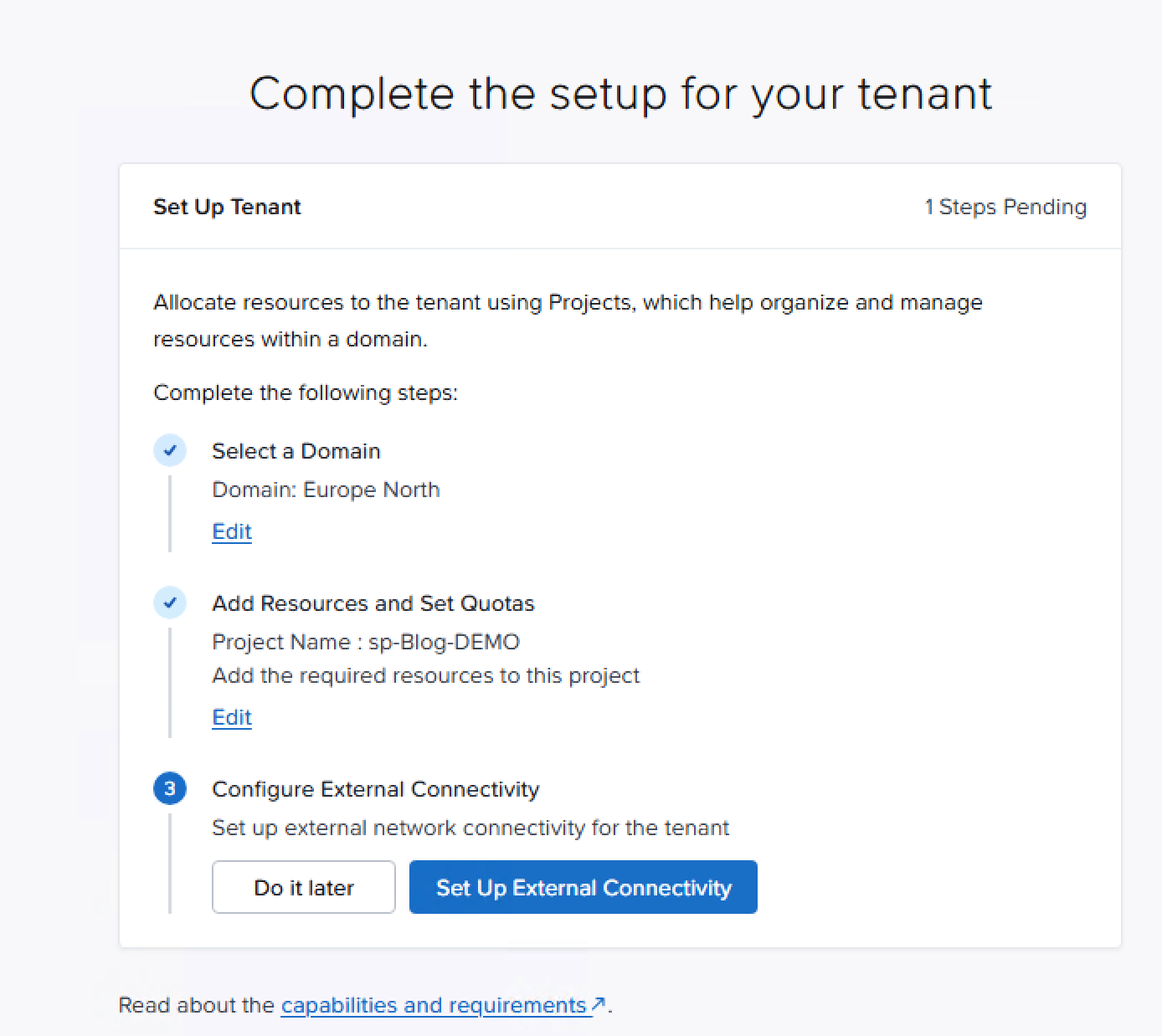
- Now for the last part of the tenant configuration, we need to configure the external connectivity for the tenant, and that is how the network traffic will flow into the tenant's workloads using VPCs and OENs. But that is the last blog post in the series (because Flow networking is hard to wrap your head around, so it calls for a separate post 😀). So just click Do it later.
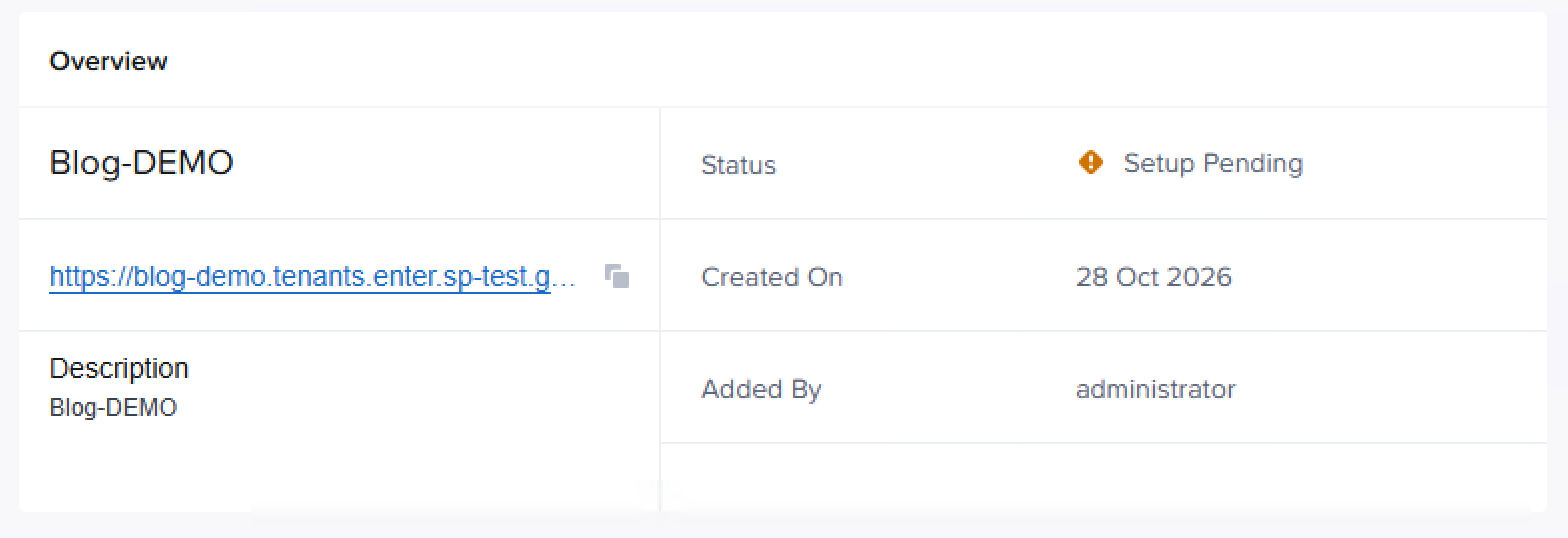
- Now you'll see a URL in the summary of your tenant.
- Log in to the tenant's unique URL. (In this case it's
https://blog-demo.tenants.enter.sp-test.gdmcloud.se) The username and password are the username and password that you configured earlier in this post.
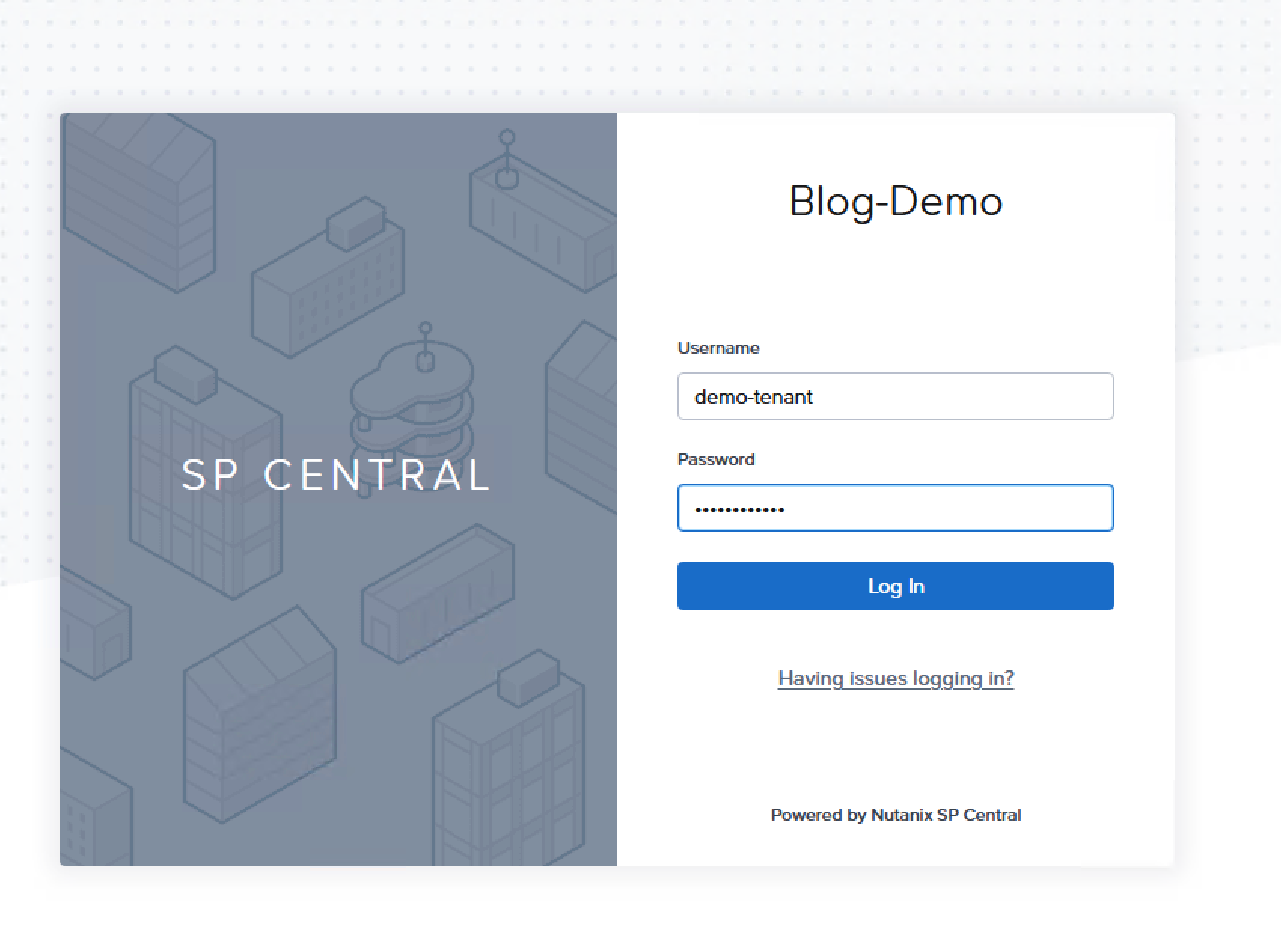
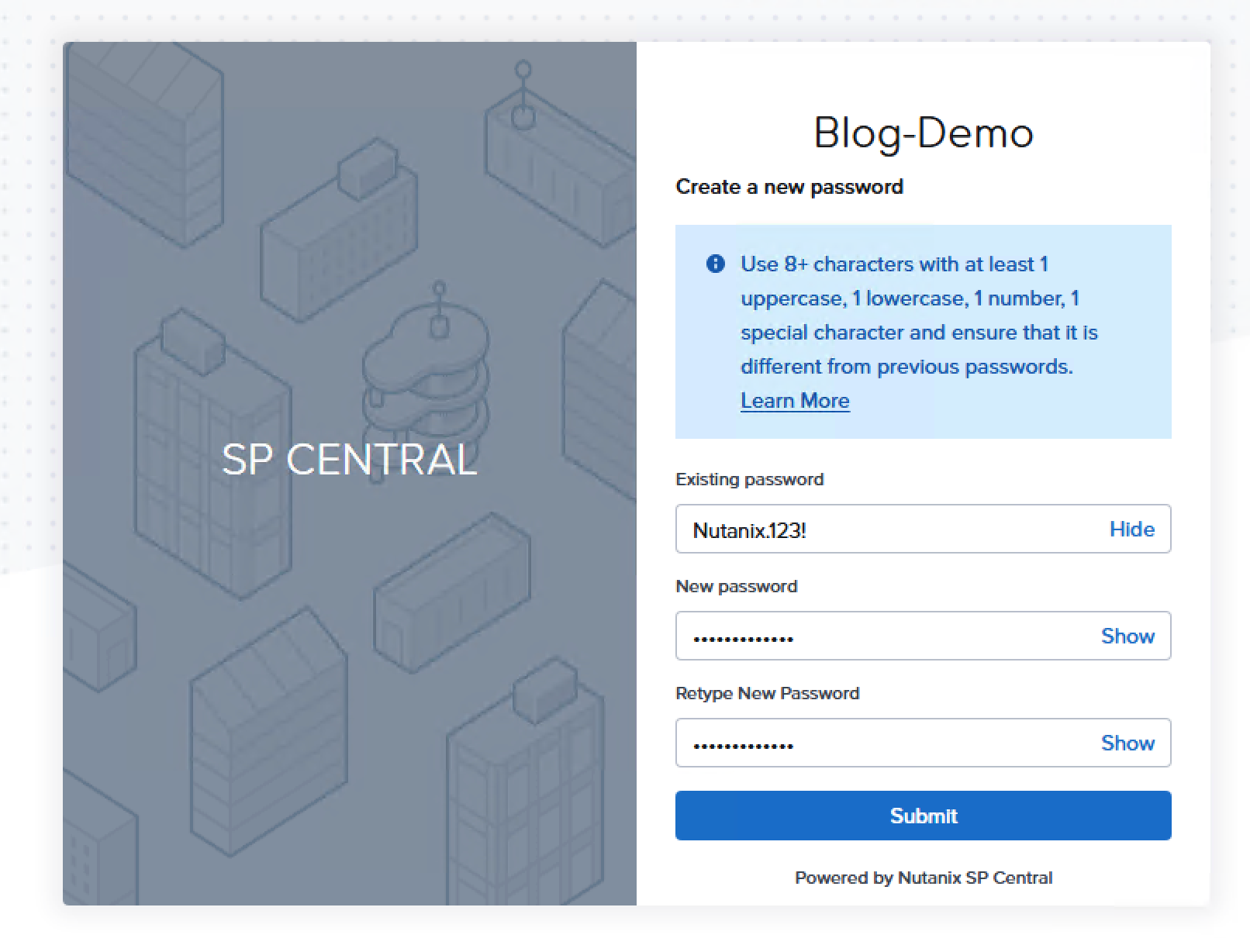
- Change the password.
- The only thing the local user can do is configure the tenant's own IdP. Note here that you cannot use the same IDP/domain as you set up for Nutanix Central etc.
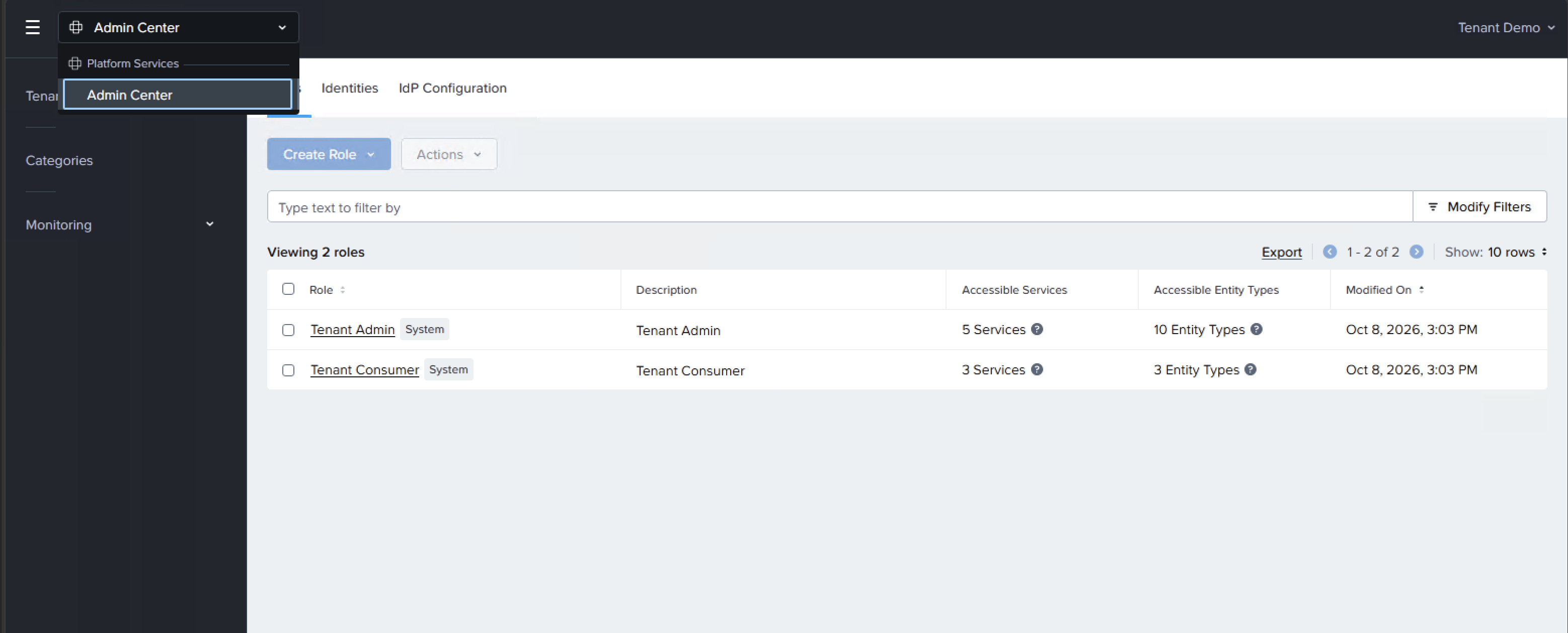
- I used a small Keycloak instance to get an IDP for the tenant. I will not go into details on how to do that since that's outside the scope of this blog.
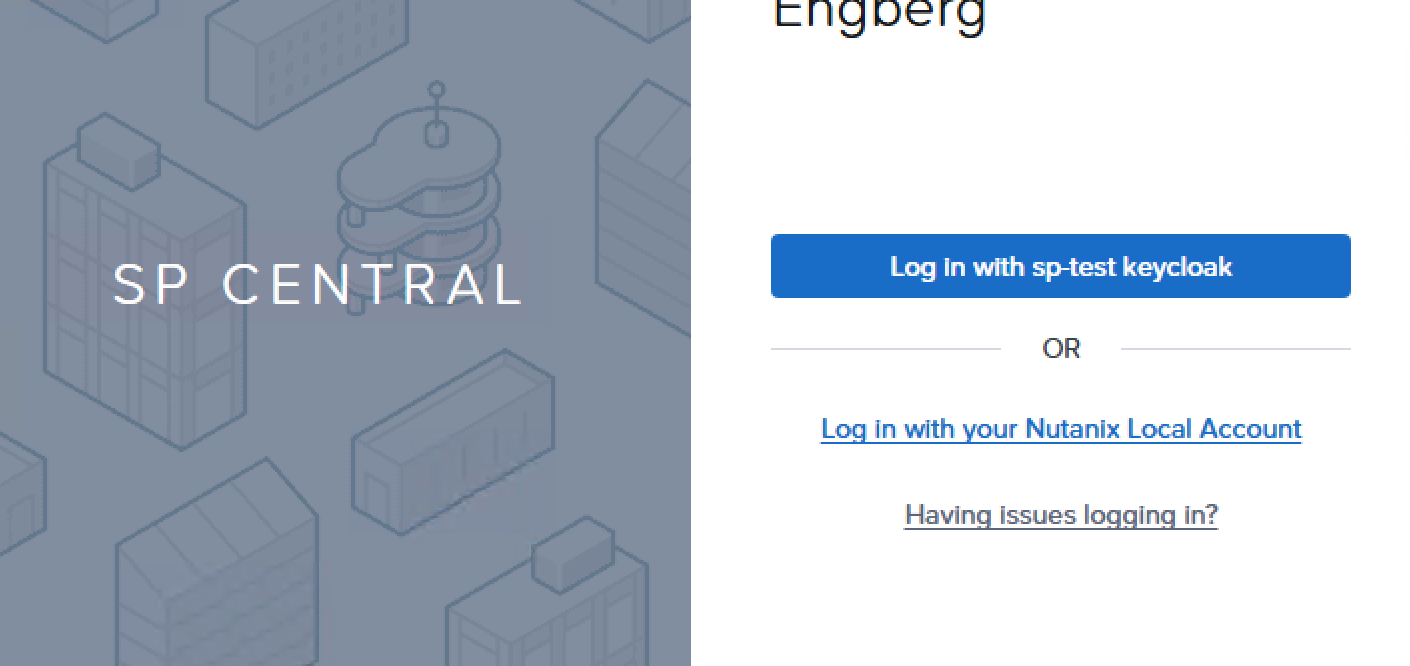
- Once you're done with that configuration log out and log in with a user from the tenants own IDP and it will look something like this:
- The easiest part is maybe to spin up another domain controller acting as the IDP/AD for the demo tenant.
- Nutanix is working on this, so there might be MSP-managed IDP and "local users" in the future. But for now, join an IDP and give them Tenant Admin or Tenant Consumer.
- Once you're done with that configuration, log out and log in with a user from the tenant's own IDP, and it will look something like this:
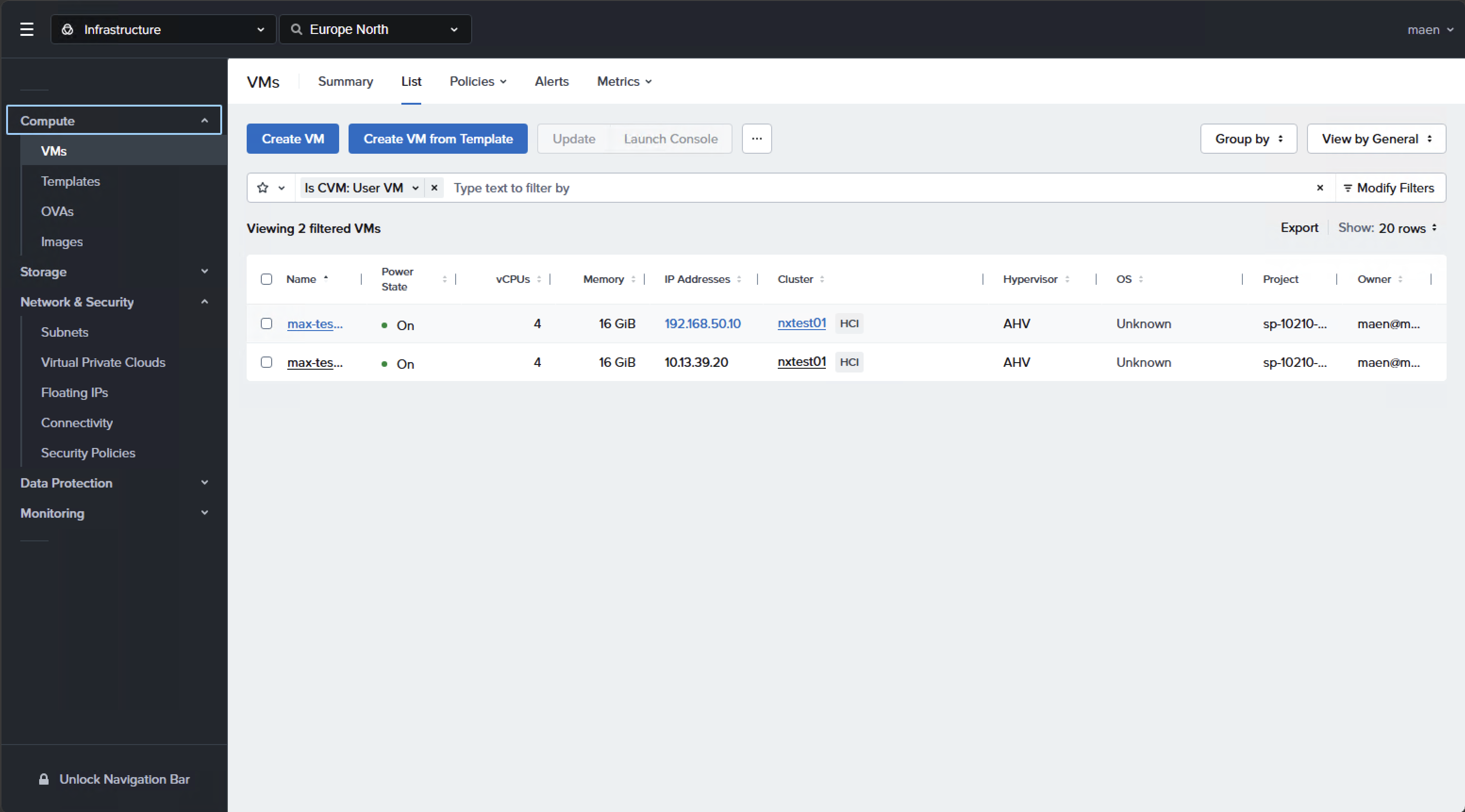
- When you've logged in as a tenant admin or consumer, the tenant will get the familiar experience that you get from Prism Central.
There you have it. SP Central deployed and your first tenant configured. In the next post we'll cover the creation of the external networking for our tenants. So make sure to stay tuned for the last post in the series.